For most people, I’d start with the Anker Prime 14-in-1 Docking Station, which pairs a broad port selection with a desk-ready setup. The Acer 13-in-1 stands out for triple-display needs, while the Anker 332 5-in-1 keeps things simple for everyday connections. The main tradeoff is between compact hubs with fewer ports and larger docks that offer more display options and wired connections. Laptop compatibility, especially for multiple monitors and charging, matters as much as the dock’s listed ports. Read on for the full comparison and a closer look at which USB-C laptop docking station suits your setup.

Get business pricing on your home office setup
- Business-only prices and quantity discounts
- Tax-exempt purchasing
- Multiple users, one account, clear invoices
Complete the kit


Key Takeaways
- Port count alone does not determine the best fit: the Anker 332’s five-port layout may suit a simple setup better than a larger dock if you only need a display and a few accessories.
- Triple-display models are for specific workflows: Acer’s 13-in-1, TobenONE’s 18-in-1, and Selore’s 17-in-1 target multi-monitor desks, but your laptop must support the display connections you plan to use.
- The lineup spans genuinely different desk needs: the Anker Nano 8-in-1 and UGREEN 7-in-1 lean compact, while Dell Pro WD25 and the high-port-count docks are better suited to permanent workstations.
- Legacy display connections can matter more than extra USB ports: HoDo’s inclusion of VGA alongside HDMI and DisplayPort may help with older projectors or monitors that newer hubs may not accommodate.
- Detachable designs add flexibility, not just ports: the Anker Nano 13-in-1 with a detachable 6-in-1 hub can serve both desk and portable use, while a conventional dock may be simpler if it will stay in one place.
| Anker Nano 8-in-1 USB-C Hub with Dual HDMI |  | Best Compact Dual-HDMI Hub | Ports: 8 | Video: 2 HDMI, up to 4K at 60 Hz on compatible hosts | USB data: 2 USB-A and 2 USB-C, up to 10 Gbps | VIEW LATEST PRICE | See Our Full Breakdown |
| Acer 13-in-1 USB-C Docking Station with Triple Display Support |  | Best for Triple-Display Windows Setups | Ports: 2 HDMI, 1 DisplayPort 1.4, 4 USB-C, 3 USB-A, Gigabit Ethernet, 3.5 mm AUX, SD, and TF | Display support: Up to three independent displays on compatible Windows laptops using MST | Maximum triple-display resolution: Up to 4K at 30 Hz with a compatible DSC-enabled host | VIEW LATEST PRICE | See Our Full Breakdown |
| MOKiN 14-in-1 USB-C Laptop Docking Station with HDMI and DisplayPort |  | Best for HDMI and DisplayPort Flexibility | Ports: 14 | Display connections: 2 HDMI and 2 DisplayPort | USB ports: 2 USB-C 3.0, 1 USB-A 3.0, and 2 USB-A 2.0 | VIEW LATEST PRICE | See Our Full Breakdown |
| Acer 9-in-1 USB-C Docking Station with Dual HDMI |  | Best for Straightforward Dual-4K HDMI | Ports: 2 HDMI, 3 USB-A, 1 USB-C, SD, and MicroSD | HDMI output: Up to 4K at 60 Hz | USB data transfer: Up to 5 Gbps | VIEW LATEST PRICE | See Our Full Breakdown |
| Dell Pro WD25 USB-C Docking Station |  | Best for Managed Office Desks | Connectivity: USB-C, DisplayPort, HDMI, Ethernet, and USB | Total ports: 10 | USB ports: 6 | VIEW LATEST PRICE | See Our Full Breakdown |
| UGREEN 7-in-1 USB-C Docking Station with Dual HDMI |  | Best Compact Dual-4K Pick | Ports: 7 total | Video outputs: 2 HDMI | Display support: Dual 4K at 60Hz; requires DP 1.4 | VIEW LATEST PRICE | See Our Full Breakdown |
| TobenONE 18-in-1 USB-C Laptop Docking Station with Triple 4K HDMI |  | Best for Windows Multi-Monitor Desks | Ports: 18 total | USB ports: 9 | Video outputs: 3 HDMI | VIEW LATEST PRICE | See Our Full Breakdown |
| Anker PowerExpand 8-in-1 USB-C Hub with Dual HDMI |  | Best for Travel and Card Readers | Ports: 8 | Video outputs: 2 HDMI | Display output: One display up to 4K at 60Hz, or two displays up to 4K at 30Hz | VIEW LATEST PRICE | See Our Full Breakdown |
| 14-in-1 USB-C Laptop Docking Station with Dual HDMI and DisplayPort |  | Best Port Variety | Ports: 14 | Video outputs: 2 HDMI and 1 DisplayPort, up to 4K | USB ports: 1 USB-C 3.1, 2 USB-A 3.1, 1 USB-C 2.0, 2 USB-A 2.0 | VIEW LATEST PRICE | See Our Full Breakdown |
| Anker Prime 14-in-1 Docking Station with Dual HDMI Displays |  | Best for Charging Multiple Devices | Ports: 14 total, including 10 USB ports | Video outputs: 2 HDMI | Display support: Up to 2K at 60Hz with DP 1.4; up to 1080p at 60Hz with DP 1.2 | VIEW LATEST PRICE | See Our Full Breakdown |
| Anker Nano 13-in-1 Laptop Docking Station with Detachable 6-in-1 USB-C Hub |  | Best for Desk-to-Travel Flexibility | Ports: 13 total, including 2 HDMI, DisplayPort, 3 USB-A, 2 USB-C data, Gigabit Ethernet, audio, SD, and TF | Display support: Single 4K at 60Hz, dual 2K at 60Hz, or triple 1080p at 60Hz | Laptop charging: Up to 100W Power Delivery | VIEW LATEST PRICE | See Our Full Breakdown |
| HoDo 8-in-1 USB-C Docking Station with Dual HDMI, DisplayPort, VGA, and 100W PD |  | Best for Legacy Monitor Mixes | Ports: 8 total: 2 HDMI, DisplayPort, VGA, 3 USB 2.0, and USB-C PD | HDMI output: One port up to 4K at 60Hz and one up to 4K at 30Hz | DisplayPort output: Up to 4K at 60Hz | VIEW LATEST PRICE | See Our Full Breakdown |
| Anker 332 5-in-1 USB-C Hub with 4K HDMI | 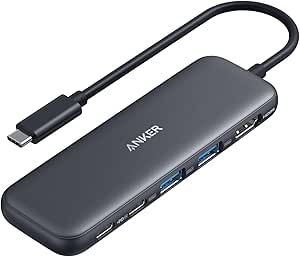 | Best Compact Everyday Hub | Ports: 4K HDMI, USB-C 5Gbps data, 2 USB-A 5Gbps data, and USB-C PD-IN | HDMI resolution: Up to 4K at 30Hz | Pass-through charging: Up to 85W | VIEW LATEST PRICE | See Our Full Breakdown |
| Anker 13-in-1 USB-C Laptop Docking Station with Triple Display |  | Best for a Fixed Multi-Monitor Desk | Ports: 13 total: 2 HDMI, DisplayPort, 3 USB-C, 3 USB-A, Gigabit Ethernet, SD/microSD, audio, and DC-IN | Display support: Up to 3 displays at 1080p and 60Hz on Windows 10/11 and ChromeOS | Single-display resolution: Up to 4K at 60Hz via HDMI or DisplayPort | VIEW LATEST PRICE | See Our Full Breakdown |
| Selore 17-in-1 USB-C Docking Station with Triple 4K Display Support |  | Best for Port-Heavy Windows Workstations | Ports: 17 total, including 3 HDMI, 2 DisplayPort, 5 USB, Gigabit Ethernet, and SD/microSD readers | Maximum display support: Three displays on compatible Windows laptops | Display resolution: First two displays up to 4K at 60Hz; third up to 4K at 30Hz | VIEW LATEST PRICE | See Our Full Breakdown |
| USB-C laptop docking station | Ports | Compatibility |
|---|---|---|
| Anker Nano 8-in-1 USB-C Hub wi | 8 | Windows 10/11, ChromeOS, full-function USB-C, USB4, and Thunderbolt; macOS displays mirror; Linux unsupported |
| Acer 13-in-1 USB-C Docking Sta | 2 HDMI, 1 DisplayPort 1.4, 4 USB-C, 3 USB-A, Gigabit Ethernet, 3.5 mm AUX, SD, and TF | — |
| MOKiN 14-in-1 USB-C Laptop Doc | 14 | Thunderbolt 3/4 or full-featured USB-C; Windows 10 or later and macOS |
| Acer 9-in-1 USB-C Docking Stat | 2 HDMI, 3 USB-A, 1 USB-C, SD, and MicroSD | Windows and macOS devices with USB-C DisplayPort Alt Mode |
| Dell Pro WD25 USB-C Docking St | — | — |
| UGREEN 7-in-1 USB-C Docking St | 7 total | Full-function USB-C or Thunderbolt 3/4 laptops |
| TobenONE 18-in-1 USB-C Laptop | 18 total | — |
| Anker PowerExpand 8-in-1 USB-C | 8 | USB-C, USB4, and Thunderbolt; Windows 10/11 and ChromeOS; not compatible with Linux |
| 14-in-1 USB-C Laptop Docking S | 14 | USB-C or Thunderbolt 3/4/5 port with video output support |
| Anker Prime 14-in-1 Docking St | 14 total, including 10 USB ports | USB-C, USB4, and Thunderbolt; Windows 10/11 and ChromeOS; Linux unsupported |
| Anker Nano 13-in-1 Laptop Dock | 13 total, including 2 HDMI, DisplayPort, 3 USB-A, 2 USB-C data, Gigabit Ethernet, audio, SD, and TF | USB-C and Thunderbolt 3/4/5 laptops; Windows 10 or later and macOS 13 Ventura or later |
| HoDo 8-in-1 USB-C Docking Stat | 8 total: 2 HDMI, DisplayPort, VGA, 3 USB 2.0, and USB-C PD | USB-C with DisplayPort Alt Mode; Windows 10/11, macOS 12 Monterey, and Ubuntu 22.04 |
| Anker 332 5-in-1 USB-C Hub wit | 4K HDMI, USB-C 5Gbps data, 2 USB-A 5Gbps data, and USB-C PD-IN | USB-C, USB4, and Thunderbolt; macOS 12 or newer, Windows 10/11, and ChromeOS |
| Anker 13-in-1 USB-C Laptop Doc | 13 total: 2 HDMI, DisplayPort, 3 USB-C, 3 USB-A, Gigabit Ethernet, SD/microSD, audio, and DC-IN | Full-function USB-C, USB4, and Thunderbolt 3/4/5; DisplayPort Alt Mode and Power Delivery support required |
| Selore 17-in-1 USB-C Docking S | 17 total, including 3 HDMI, 2 DisplayPort, 5 USB, Gigabit Ethernet, and SD/microSD readers | — |
More Details on Our Top Picks
Anker Nano 8-in-1 USB-C Hub with Dual HDMI
The Anker Nano 8-in-1 is a portable pick for a laptop bag, pairing two HDMI outputs with USB-A, USB-C, and SD and TF card readers in a 3.84-ounce aluminum body. Its USB data ports reach 10 Gbps, faster than the 5 Gbps ports on the Acer 9-in-1 Dual HDMI, which makes a difference when moving large files to external storage. Compatible Windows laptops can drive two displays at up to 4K at 60 Hz, but that depends on a host port with DP 1.4 and DSC. The main limitation is platform-specific: macOS mirrors external displays, and Linux is unsupported. It also needs a separate 100 W charger and cable for full pass-through charging, and its USB data ports do not charge devices. Choose it for portability and fast data; skip it if you need a full desktop dock or extended displays on a Mac.
Pros:- Two HDMI outputs support up to 4K at 60 Hz on compatible Windows hosts.
- USB-A and USB-C data ports support speeds up to 10 Gbps.
- SD and TF card slots suit photographers and other card-based workflows.
- Compact aluminum body weighs 3.84 ounces.
Cons:- macOS mirrors the same image across external displays, and Linux is not supported.
- A 100 W PD charger and cable are needed for full charging and are not included.
- USB data ports do not provide charging or video output.
Best for: Windows laptop users who want a lightweight travel hub with dual HDMI, fast USB data, and memory-card readers.
Not ideal for: Linux users, Mac users who need separate extended desktops, or anyone seeking a powered dock with a charger included.
- Ports:8
- Video:2 HDMI, up to 4K at 60 Hz on compatible hosts
- USB data:2 USB-A and 2 USB-C, up to 10 Gbps
- Card readers:SD and TF 3.0, up to 104 MB/s
- Laptop pass-through charging:Up to 85 W
- PD input:Up to 100 W
- Compatibility:Windows 10/11, ChromeOS, full-function USB-C, USB4, and Thunderbolt; macOS displays mirror; Linux unsupported
- Dimensions and weight:7.87 × 4.13 × 0.79 in; 3.84 oz
Our verdict“Choose the Anker Nano for a portable, fast-data Windows setup, but pick a different dock for Linux or extended Mac displays.”
Acer 13-in-1 USB-C Docking Station with Triple Display Support
The Acer 13-in-1 is the clearest choice here for a compatible Windows laptop that needs three independent screens and a broad desktop connection set. Two HDMI ports and DisplayPort support triple-display output through MST, while the included 110 W adapter supplies up to 100 W to the laptop. That ready-to-use power setup is an advantage over the MOKiN 14-in-1, which requires a separate 100 W adapter. The tradeoff is that triple-display operation tops out at 4K at 30 Hz and requires a compatible DSC-enabled laptop and GPU, so smooth high-refresh 4K across multiple monitors is not the target. Mac users get mirrored displays rather than an extended multi-monitor desktop. I’d choose this dock for a Windows workstation needing built-in Ethernet, audio, card readers, and three screens; laptop compatibility should be checked before relying on the full display setup.
Pros:- Supports up to three independent displays on compatible Windows laptops.
- Includes a 110 W adapter and supplies up to 100 W to the laptop.
- Combines HDMI, DisplayPort, USB, Gigabit Ethernet, audio, and card readers.
- Aluminum body includes an integrated security slot.
Cons:- Triple-display resolution is limited to up to 4K at 30 Hz and requires a compatible DSC-enabled host.
- macOS supports display mirroring only.
- The rear USB-C port is for data transfer only.
Best for: Windows laptop owners building a three-monitor desk who want Ethernet, card readers, audio, and laptop power from one included adapter.
Not ideal for: Mac users needing independent external desktops, or users who require triple 4K at 60 Hz.
- Ports:2 HDMI, 1 DisplayPort 1.4, 4 USB-C, 3 USB-A, Gigabit Ethernet, 3.5 mm AUX, SD, and TF
- Display support:Up to three independent displays on compatible Windows laptops using MST
- Maximum triple-display resolution:Up to 4K at 30 Hz with a compatible DSC-enabled host
- Laptop charging:Up to 100 W USB-C PD
- Power adapter:110 W included
- Body material:Aluminum
- Security:Integrated security slot; cable lock not included
- Included accessories:110 W power adapter, USB4 Type-C cable, user manual, and quick guide
Our verdict“Pick the Acer for a compatible Windows desk that needs three displays and a bundled power adapter, not for extended-display Mac use.”
MOKiN 14-in-1 USB-C Laptop Docking Station with HDMI and DisplayPort
The MOKiN 14-in-1 suits a desk where monitor connections vary: its two HDMI and two DisplayPort outputs offer more connection combinations than the dual-HDMI Acer 9-in-1. It also brings together USB, Gigabit Ethernet, SD and microSD readers, and a screen lock button, making it a broad connectivity option for compatible Thunderbolt 3/4 or full-featured USB-C laptops. Its 5 Gbps USB data rate is more modest than the Anker Nano’s 10 Gbps, so it is less compelling for frequent large-file transfers. Power is another practical tradeoff: the dock supports up to 100 W PD, but the required 100 W adapter is not included. On macOS, connected monitors mirror the same image, so the extra display connectors do not translate into separate extended desktops. I’d favor it when port variety matters more than fast USB transfers or a bundled charger.
Pros:- Two HDMI and two DisplayPort connections provide flexible monitor hookups.
- Includes Gigabit Ethernet, SD and microSD readers, and a screen lock button.
- Supports up to 100 W USB-C Power Delivery.
- Broad 14-port selection combines display and peripheral connections.
Cons:- The 100 W power adapter needed for charging is not included.
- USB data transfer is limited to 5 Gbps.
- External displays mirror on macOS.
Best for: Users with compatible Thunderbolt or full-featured USB-C laptops who need flexible HDMI and DisplayPort connections, wired networking, and card readers.
Not ideal for: Mac users who need independent external displays, or buyers who want a power adapter included and faster-than-5-Gbps USB data.
- Ports:14
- Display connections:2 HDMI and 2 DisplayPort
- USB ports:2 USB-C 3.0, 1 USB-A 3.0, and 2 USB-A 2.0
- Other connections:RJ45 Ethernet, SD and microSD card slots, and USB-C power input
- Maximum USB-C Power Delivery:100 W
- USB data transfer rate:5 Gbps
- Ethernet:1000 Mbps
- Compatibility:Thunderbolt 3/4 or full-featured USB-C; Windows 10 or later and macOS
- Power adapter:100 W adapter required for charging; not included
Our verdict“Choose the MOKiN when varied HDMI and DisplayPort connections matter more than faster USB data or an included charger.”
Acer 9-in-1 USB-C Docking Station with Dual HDMI
The Acer 9-in-1 Dual HDMI keeps a dual-monitor setup simple: it has two HDMI outputs rated for up to 4K at 60 Hz, plus USB-A, USB-C, and SD and microSD readers. Compared with the Anker Nano 8-in-1, it offers a more basic 5 Gbps USB data rate, but it still covers everyday peripherals and card transfers without the Anker’s 10 Gbps data ports. Its built-in 0.65-foot cable keeps the host connection attached, while the aluminum enclosure gives it a more dock-like feel than a tiny travel adapter. A suitable power adapter is not included; buyers need a 100 W or higher adapter to provide up to 90 W to the laptop. The laptop must also support USB-C DisplayPort Alt Mode, and macOS mirrors external displays. This is a sensible fit for a modest Windows or Mac desk, not a multi-display Mac workstation.
Pros:- Two HDMI outputs support up to 4K at 60 Hz.
- Includes USB-A, USB-C, SD, and microSD connections.
- Aluminum alloy enclosure and attached 0.65-foot host cable.
- Provides up to 90 W laptop charging with a suitable adapter.
Cons:- Power adapter is not included; a 100 W or higher adapter is needed for charging.
- USB data transfer is limited to 5 Gbps.
- macOS mirrors external monitors and has limited supported display configurations.
Best for: Laptop users with USB-C DisplayPort Alt Mode who want two HDMI monitors, memory-card readers, and everyday USB connectivity.
Not ideal for: Buyers who need an included power adapter, faster USB data, or separate extended displays from a Mac.
- Ports:2 HDMI, 3 USB-A, 1 USB-C, SD, and MicroSD
- HDMI output:Up to 4K at 60 Hz
- USB data transfer:Up to 5 Gbps
- Card reader speed:Up to 104 Mbps
- Power delivery:Up to 100 W input; up to 90 W to laptop
- Host cable:0.65 ft built-in cable
- Enclosure:Aluminum alloy, grey
- Compatibility:Windows and macOS devices with USB-C DisplayPort Alt Mode
Our verdict“Choose the Acer 9-in-1 for a straightforward dual-HDMI desk if you already have a suitable power adapter and do not need extended Mac displays.”
Dell Pro WD25 USB-C Docking Station
The Dell Pro WD25 is the office-oriented choice in this group, prioritizing centralized management and broad workstation support over a compact travel form. It delivers up to 100 W of power, offers six USB ports among its ten total ports, and supports up to four high-resolution displays. Dell Device Management Console can help IT teams manage compatible docks centrally, while the cable can route to either side to suit different desk layouts. That makes it a different proposition from the Acer 13-in-1, whose triple-display setup is specifically described for compatible Windows laptops and includes an adapter. The Dell’s listed operating-system support includes selected Windows, Linux, and ChromeOS versions, so buyers should verify their exact system. Its specifications list only one HDMI port, and at 1.2 pounds it is less suited to frequent travel than the Anker Nano.
Pros:- Supports up to four high-resolution displays.
- Delivers up to 100 W of power and includes six USB ports.
- Cable can be routed to either side for flexible desk placement.
- Uses at least 65% postconsumer recycled materials and supports centralized management.
Cons:- Specifications list only one HDMI port, limiting HDMI-heavy monitor setups.
- Listed operating-system compatibility is limited to specified versions.
- At 1.2 pounds, it is less portable than compact hubs such as the Anker Nano.
Best for: Office IT teams and workstation users who need centralized dock management, up to 100 W power, and support for multiple displays.
Not ideal for: Frequent travelers seeking a light hub, or buyers who need several HDMI ports or compatibility with an operating system version outside the listed support.
- Connectivity:USB-C, DisplayPort, HDMI, Ethernet, and USB
- Total ports:10
- USB ports:6
- HDMI ports:1
- Display support:Up to four high-resolution displays
- Power delivery:Up to 100 W
- Compatible operating systems:Windows 10, Windows 11, Ubuntu 24.04, Red Hat Enterprise Linux 9.6+, and ChromeOS 137
- Dimensions and weight:8.07 × 3.54 × 1.39 in; 1.2 lb
- Recycled materials and warranty:At least 65% postconsumer recycled materials; 3-year limited hardware warranty with advanced exchange
Our verdict“Choose the Dell Pro WD25 for a managed office workstation with multiple displays, but check OS support and display-port needs before buying.”
UGREEN 7-in-1 USB-C Docking Station with Dual HDMI
The UGREEN 7-in-1 is the most portable choice here for a Windows laptop user who needs two high-refresh external screens without a large desktop dock. Its dual HDMI outputs support 4K at 60Hz when the laptop has DP 1.4, and four USB-A and USB-C data ports run at up to 10Gbps. At just 91 g with an aluminum enclosure, it is easier to pack than the larger TobenONE 18-in-1 or Anker Prime 14-in-1.
The tradeoff is its narrow scope: the UGREEN lacks Ethernet and card readers, and its data ports do not carry video, audio, or device charging. Windows can extend the desktop across both screens, but macOS mirrors the same image. You also need to supply a power adapter and charging cable. Choose it for compact, fast connections—not as a full desk-replacement station.
Pros:- Supports dual 4K HDMI displays at up to 60Hz with a compatible DP 1.4 laptop.
- Four USB-A and USB-C data ports support speeds up to 10Gbps.
- Compact 91 g aluminum design is easy to carry.
- Provides up to 100W power delivery.
Cons:- macOS mirrors the same content on both external monitors.
- Power adapter and charging cable are not included.
- USB data ports do not provide charging, video, or audio transfer.
Best for: Windows laptop owners who travel with two 4K monitors and want a lightweight dock with several fast USB data ports.
Not ideal for: Mac users who need separate content on two external displays, or desk users who want Ethernet, card readers, and a bundled power setup.
- Ports:7 total
- Video outputs:2 HDMI
- Display support:Dual 4K at 60Hz; requires DP 1.4
- USB data ports:2 USB-A and 2 USB-C, up to 10Gbps
- Power delivery:Up to 100W
- Weight and material:91 g; aluminum
- Compatibility:Full-function USB-C or Thunderbolt 3/4 laptops
- Operating system display behavior:Windows supports extended dual displays; macOS mirrors both external displays
Our verdict“Choose the UGREEN for a compact Windows dual-4K setup; pick a larger dock if you also need Ethernet or card readers.”
TobenONE 18-in-1 USB-C Laptop Docking Station with Triple 4K HDMI
For a Windows workstation that needs many connections and up to three external displays, the TobenONE 18-in-1 offers the broadest port selection in this batch. It combines three HDMI outputs, nine USB ports, Ethernet, SD and microSD readers, and audio, so it can replace several separate adapters. Compared with the more portable UGREEN 7-in-1, it is a better fit for a fixed desk where connectivity matters more than bag space.
Its triple-display support reaches 4K at up to 60Hz, but the laptop and connection must support the required display setup. Compatibility is also a clear boundary: the dock is designed for Windows and ChromeOS, and Mac use is not recommended. The required power supply is not included and must be rated above 65W. At 10.88 ounces, it is less suited to frequent travel than the UGREEN.
Pros:- 18 ports include three HDMI outputs, nine USB ports, Ethernet, card readers, and audio.
- Supports dual or triple 4K displays at up to 60Hz.
- Delivers up to 100W laptop power delivery.
- Works with compatible Windows and ChromeOS laptops.
Cons:- Power adapter is not included and a supply rated over 65W is required.
- Mac use is not recommended.
- Larger and heavier than compact hubs such as the UGREEN 7-in-1.
Best for: Windows or ChromeOS users building a desk setup with up to three 4K monitors, wired networking, card readers, and multiple USB accessories.
Not ideal for: Mac users, or anyone seeking a travel-friendly dock or a package that includes its required power supply.
- Ports:18 total
- USB ports:9
- Video outputs:3 HDMI
- Display support:Dual or triple 4K at up to 60Hz
- Power delivery:Up to 100W
- Required power supply:Over 65W; not included
- Dimensions and weight:4.9 × 3.5 × 1.6 inches; 10.88 ounces
- Compatible connections and systems:Full-featured USB-C, USB4, Thunderbolt 3/4; Windows 10 or later, ChromeOS 100.x or later, Android 7.1 or later, Ubuntu 20.04 or later
Our verdict“Pick the TobenONE for a connection-heavy Windows or ChromeOS desk with multiple 4K screens, but skip it if you need Mac support or a supplied power adapter.”
Anker PowerExpand 8-in-1 USB-C Hub with Dual HDMI
The Anker PowerExpand 8-in-1 is a handy travel-oriented hub for buyers who want display connections, wired networking, and card readers in one compact accessory. Its SD and microSD slots make it more useful for photographers than the UGREEN 7-in-1, which focuses on fast USB data ports but has no card readers or Ethernet. The Anker also includes two USB-A ports and supports up to 85W pass-through charging.
Display limits are the main compromise: one external screen can reach 4K at 60Hz, while two top out at 4K at 30Hz. On macOS, both external displays show the same content, and Linux is unsupported. The hub requires a compatible 100W PD charger and USB-C cable, neither of which is included. Its ABS enclosure and lighter, smaller format suit a bag, but it offers fewer high-speed USB connections than the UGREEN.
Pros:- Combines dual HDMI, Ethernet, two USB-A data ports, and SD and microSD readers.
- Supports up to 85W pass-through charging.
- Compact 3.2-ounce design is suited to travel.
- Can connect two external HDMI displays.
Cons:- Two-display output is limited to up to 4K at 30Hz.
- macOS mirrors the same content on both external monitors.
- Requires a compatible 100W PD charger and USB-C cable, sold separately; Linux is unsupported.
Best for: Windows or ChromeOS laptop users who travel with SD or microSD cards and need Ethernet, HDMI, and pass-through charging in a small hub.
Not ideal for: Linux users, Mac users who need extended dual displays, or anyone who requires dual 4K at 60Hz or included charging gear.
- Ports:8
- Video outputs:2 HDMI
- Display output:One display up to 4K at 60Hz, or two displays up to 4K at 30Hz
- USB and card-reader ports:2 USB-A data, SD card reader, microSD card reader
- Power delivery:Pass-through charging up to 85W
- Network:1Gbps Ethernet
- Dimensions and weight:4.65 × 2.01 × 0.69 inches; 3.2 oz
- Compatibility:USB-C, USB4, and Thunderbolt; Windows 10/11 and ChromeOS; not compatible with Linux
Our verdict“Choose the Anker PowerExpand for travel-friendly card access and Ethernet, but look elsewhere for Linux support or smoother dual-screen output.”
14-in-1 USB-C Laptop Docking Station with Dual HDMI and DisplayPort
This 14-in-1 dock stands out for buyers who want to choose among HDMI and DisplayPort connections rather than rely on HDMI alone. It has two HDMI outputs and one DisplayPort, plus Gigabit Ethernet, SD and microSD readers, audio, and a mix of USB-A and USB-C ports. Compared with the TobenONE 18-in-1, it has fewer total connections and only one DisplayPort, but its mix of video standards can suit a desk with different monitor inputs.
Its multi-display support depends on the laptop, operating system, and connection arrangement; the clearest stated limit is up to 4K on a single display. Charging output is capped at 87W despite support for up to 100W input, and the power adapter and cable are not included. MacBook users should expect mirrored external images, while USB-C laptops must support video output for the display ports to work.
Pros:- Offers two HDMI outputs and one DisplayPort for flexible monitor connections.
- Combines 14 ports, including Gigabit Ethernet, SD and microSD readers, and audio.
- USB 3.1 ports support data transfer rates up to 10Gbps.
- Aluminum enclosure and plug-and-play operation.
Cons:- Supports up to 4K on a single display; multi-display resolution varies by configuration.
- Charging output is limited to 87W, and the power adapter and cable are not included.
- MacBook external monitors mirror the same image, and the laptop must support USB-C video output.
Best for: Windows laptop owners with a mix of HDMI and DisplayPort monitors who also need wired networking, card readers, and audio.
Not ideal for: MacBook users who need separate external desktops, or buyers who need clearly specified high-resolution multi-screen performance and included power accessories.
- Ports:14
- Video outputs:2 HDMI and 1 DisplayPort, up to 4K
- USB ports:1 USB-C 3.1, 2 USB-A 3.1, 1 USB-C 2.0, 2 USB-A 2.0
- USB data rates:USB 3.1 up to 10Gbps; USB 2.0 up to 480Mbps
- Power input and charging output:Up to 100W input; up to 87W charging output
- Other connections:10/100/1000BASE-T Ethernet, SD and microSD readers, 3.5 mm microphone/audio jack
- Compatibility:USB-C or Thunderbolt 3/4/5 port with video output support
- Material and color:Aluminum; gray
Our verdict“Pick this dock when your desk needs both HDMI and DisplayPort connections, but choose a more clearly specified display option for demanding multi-monitor resolutions.”
Anker Prime 14-in-1 Docking Station with Dual HDMI Displays
The Anker Prime 14-in-1 is the strongest choice here when charging several devices matters as much as connecting a laptop to displays and peripherals. Its 160W total output includes up to 100W from a USB-C port and up to 12W from USB-A, with capacity to charge up to four devices. It also offers 14 connections, including 10 USB ports, dual HDMI, audio, and Ethernet. Compared with the more portable Anker PowerExpand 8-in-1, this is a fuller desk dock rather than a compact card-reader hub.
Its HDMI output is less ambitious than the UGREEN 7-in-1: dual displays reach up to 2K at 60Hz with DP 1.4, or 1080p at 60Hz with DP 1.2. macOS mirrors both screens, Linux is unsupported, and the plastic enclosure weighs 1.28 kg. It also does not support 5120 × 1440 monitors, so check display requirements before choosing it.
Pros:- 14 connections include 10 USB ports, dual HDMI, audio, and Ethernet.
- Provides 160W total output and can charge up to four devices.
- USB data transfer speeds reach up to 10Gbps.
- Includes a 3.3-foot USB-C cable rated for 100W and 10Gbps.
Cons:- Dual HDMI output is limited to 2K at 60Hz with DP 1.4 or 1080p at 60Hz with DP 1.2.
- macOS mirrors the same content on both external monitors, and Linux is unsupported.
- Does not support 5120 × 1440 monitors and weighs 1.28 kg.
Best for: Windows or ChromeOS desk users who need to connect many USB accessories and charge a laptop plus several devices from one dock.
Not ideal for: Linux users, Mac users who need separate external screens, or owners of high-resolution ultrawide monitors or dual 4K displays.
- Ports:14 total, including 10 USB ports
- Video outputs:2 HDMI
- Display support:Up to 2K at 60Hz with DP 1.4; up to 1080p at 60Hz with DP 1.2
- Power output:160W total; USB-C up to 100W per port; USB-A up to 12W
- Data transfer:Up to 10Gbps
- Compatibility:USB-C, USB4, and Thunderbolt; Windows 10/11 and ChromeOS; Linux unsupported
- Material and weight:Plastic; 1.28 kg
- Included cable:USB-C, 3.3 ft, 100W, 10Gbps
Our verdict“Choose the Anker Prime when multi-device charging and a large USB port selection outweigh the need for higher-resolution dual-monitor output.”
Anker Nano 13-in-1 Laptop Docking Station with Detachable 6-in-1 USB-C Hub
The detachable 6-in-1 hub gives this dock a practical advantage over the Anker 13-in-1 USB-C Laptop Docking Station with Triple Display: you can leave the larger port setup at your desk and take the smaller hub with you. At the desk, it supports up to three external displays, plus Ethernet, card readers, audio, and up to 100W laptop charging. That mix suits someone who alternates between a fixed workstation and mobile work without wanting two separate adapters.
The tradeoff is that multi-monitor support depends on your laptop and operating system: macOS mirrors multiple external displays, and the dock’s ports need a laptop connection to operate. Its 140W adapter is included, which makes setup more self-contained than the Selore 17-in-1, whose power adapter is sold separately. Skip it if you need independent extended displays on a Mac.
Pros:- Detachable 6-in-1 hub can serve as a portable companion to the desktop dock.
- Supports up to three external displays on compatible setups.
- Offers up to 100W laptop charging and up to 10Gbps USB-C data.
- Includes a 140W power adapter and 3-foot USB-C cable.
Cons:- Multiple external displays mirror on macOS rather than extending independently.
- Ports require a connected laptop to activate.
- Display limits vary by setup, with triple-display output capped at 1080p at 60Hz.
Best for: People who move between a home or office desk and travel, and want a full dock plus a detachable portable hub.
Not ideal for: Mac users who need multiple independent external displays, or buyers seeking a dock that operates without a connected laptop.
- Ports:13 total, including 2 HDMI, DisplayPort, 3 USB-A, 2 USB-C data, Gigabit Ethernet, audio, SD, and TF
- Display support:Single 4K at 60Hz, dual 2K at 60Hz, or triple 1080p at 60Hz
- Laptop charging:Up to 100W Power Delivery
- USB-C data:Up to 10Gbps
- Included power adapter:140W
- Compatibility:USB-C and Thunderbolt 3/4/5 laptops; Windows 10 or later and macOS 13 Ventura or later
- Dimensions:3.74 × 1.57 × 5.51 inches
- Warranty:18 months
Our verdict“Choose this Anker if you want one desk dock that can split into a more portable hub, and skip it if Mac multi-monitor extension is a requirement.”
HoDo 8-in-1 USB-C Docking Station with Dual HDMI, DisplayPort, VGA, and 100W PD
The HoDo’s standout is its unusually broad choice of video connectors: dual HDMI, DisplayPort, and VGA let it accommodate a desk with newer monitors alongside an older VGA screen. That makes it a different sort of pick from the Anker 332 5-in-1, which is a simpler compact hub with one HDMI output and faster USB data. HoDo supports up to 4K at 60Hz through DisplayPort or one HDMI output in compatible single-display setups, while its USB-C power input can pass up to 87W to a laptop.
The compromises are substantial for everyday peripherals: its three USB ports are USB 2.0, limited to 480Mbps, and a separate power adapter is required but not included. Connecting VGA also limits all displays to 1080p, while macOS mirrors external screens. Check that your USB-C port supports DisplayPort Alt Mode; a data-only port will not work.
Pros:- Combines HDMI, DisplayPort, and VGA outputs for mixed-generation monitor setups.
- Supports up to 4K at 60Hz through DisplayPort on compatible setups.
- Passes up to 87W of power to a connected laptop.
- Lightweight design weighs 0.13 kg.
Cons:- Three USB ports use USB 2.0 and top out at 480Mbps.
- Power adapter is required but not included.
- Using VGA limits all connected displays to 1080p, and macOS mirrors external displays.
Best for: Windows laptop users connecting a mix of HDMI, DisplayPort, and older VGA monitors who value video compatibility over fast USB data.
Not ideal for: Buyers who need fast transfers from USB storage, want a supplied power adapter, or use macOS for multiple extended displays.
- Ports:8 total: 2 HDMI, DisplayPort, VGA, 3 USB 2.0, and USB-C PD
- HDMI output:One port up to 4K at 60Hz and one up to 4K at 30Hz
- DisplayPort output:Up to 4K at 60Hz
- VGA output:Up to 1080p at 60Hz
- USB data rate:Up to 480Mbps
- Laptop charging:Up to 87W output; up to 100W input
- Compatibility:USB-C with DisplayPort Alt Mode; Windows 10/11, macOS 12 Monterey, and Ubuntu 22.04
- Weight:0.13 kg
Our verdict“Pick the HoDo when connecting VGA and modern monitors matters more than USB speed, but choose a faster hub for frequent file transfers.”
Anker 332 5-in-1 USB-C Hub with 4K HDMI
The Anker 332 is the simplest, most portable choice in this group: it adds one HDMI display output, two USB-A ports, USB-C data, and charging pass-through without the footprint or connector count of the full Anker 13-in-1 docks. Its 1.44-ounce body is easy to carry alongside a laptop, making it a better fit for travel or a light desk setup than the HoDo 8-in-1, which prioritizes multiple monitor connections instead.
That smaller scope brings clear limits. HDMI tops out at 4K at 30Hz, so it is less suited to a high-refresh desktop display, and the USB-C data port cannot output video. The PD-IN port charges only; it does not transfer data, and the charger for pass-through power is not included. Linux users should also skip it, since the listed compatibility excludes Linux.
Pros:- Compact and lightweight for carrying with a laptop.
- Adds HDMI, two USB-A data ports, USB-C data, and charging pass-through.
- Supports up to 85W pass-through charging.
- USB data ports support speeds up to 5Gbps.
Cons:- HDMI output is limited to 4K at 30Hz.
- USB-C data port does not support video, and PD-IN is charging-only.
- Pass-through charger is not included, and Linux is not supported.
Best for: Laptop owners who want a lightweight travel hub for one external display, basic USB accessories, and pass-through charging.
Not ideal for: Linux users, multi-monitor desk setups, or buyers who need 4K at 60Hz or USB-C video output.
- Ports:4K HDMI, USB-C 5Gbps data, 2 USB-A 5Gbps data, and USB-C PD-IN
- HDMI resolution:Up to 4K at 30Hz
- Pass-through charging:Up to 85W
- Data transfer:Up to 5Gbps
- Compatibility:USB-C, USB4, and Thunderbolt; macOS 12 or newer, Windows 10/11, and ChromeOS
- Dimensions:4.78 × 1.59 × 0.45 inches
- Weight:1.44 oz
- Warranty:18 months
Our verdict“Choose the Anker 332 for a lightweight, single-monitor travel setup, not for high-refresh displays or a multi-screen workstation.”
Anker 13-in-1 USB-C Laptop Docking Station with Triple Display
This Anker 13-in-1 is a desk-focused all-in-one dock for people who want monitor, network, card-reader, audio, and USB connections consolidated through one laptop cable. On compatible Windows and ChromeOS laptops, it can run up to three external screens at 1080p and 60Hz; for a sharper single-screen setup, it supports 4K at 60Hz. Compared with the Anker Nano 13-in-1, it lacks a detachable travel hub, but offers a similarly broad set of desk connections in a compact vertical design.
The included 135W adapter can supply up to 85W to the laptop and 18W to a phone, so it can reduce charger clutter on a fixed desk. Its main limitation is operating-system behavior: macOS mirrors external displays instead of extending them independently. Laptop compatibility also depends on USB-C support for both DisplayPort Alt Mode and Power Delivery.
Pros:- Combines display, USB, Ethernet, card-reading, and audio connections in one dock.
- Supports up to three 1080p at 60Hz displays on compatible Windows and ChromeOS systems.
- Includes a 135W adapter and supports laptop and phone charging.
- Vertical design helps conserve desk space.
Cons:- External displays mirror on macOS rather than extending independently.
- Laptop charging tops out at 85W.
- Full compatibility depends on USB-C DisplayPort Alt Mode and Power Delivery support.
Best for: Windows or ChromeOS laptop users building a permanent desk setup with up to three 1080p monitors, Ethernet, and card-reader access.
Not ideal for: Mac users who need several independent extended displays, or laptop owners whose USB-C port lacks DisplayPort Alt Mode or Power Delivery.
- Ports:13 total: 2 HDMI, DisplayPort, 3 USB-C, 3 USB-A, Gigabit Ethernet, SD/microSD, audio, and DC-IN
- Display support:Up to 3 displays at 1080p and 60Hz on Windows 10/11 and ChromeOS
- Single-display resolution:Up to 4K at 60Hz via HDMI or DisplayPort
- Laptop charging:Up to 85W
- USB data:USB-C up to 10Gbps; USB-A up to 5Gbps
- Included power adapter:135W
- Compatibility:Full-function USB-C, USB4, and Thunderbolt 3/4/5; DisplayPort Alt Mode and Power Delivery support required
- Dimensions and weight:4.9 × 3.5 × 1.6 inches; 13.12 oz
Our verdict“Choose this Anker for a space-conscious Windows or ChromeOS multi-monitor desk, but look elsewhere if you need Mac extended displays or a detachable travel hub.”
Selore 17-in-1 USB-C Docking Station with Triple 4K Display Support
The Selore makes the strongest case for buyers who want a large range of monitor connections in one vertical dock: its 17 ports include three HDMI and two DisplayPort outputs, plus USB, Gigabit Ethernet, and SD and microSD readers. On compatible Windows laptops, it supports three extended displays, with the first two reaching 4K at 60Hz and the third capped at 4K at 30Hz. That gives it more video-connection variety than the Anker 13-in-1 with Triple Display, though the Anker includes its power adapter while the Selore does not.
The status display and silicone suction base add practical touches for a fixed desk, but the dock needs a compatible 87W-or-higher charger, sold separately. Mac support is narrower: users are limited to mirror mode or one extended display, so the triple-screen headline is chiefly a Windows benefit. The third screen’s lower refresh rate may also matter for fast-moving content.
Pros:- Offers 17 ports, including three HDMI and two DisplayPort outputs.
- Supports three extended displays on compatible Windows laptops.
- Provides up to 10Gbps USB data, Gigabit Ethernet, and SD and microSD readers.
- Includes a status display and silicone suction base.
Cons:- Power adapter is sold separately; an 87W-or-higher charger is required.
- macOS is limited to mirror mode or one extended display.
- Third display is limited to 4K at 30Hz in the listed configuration.
Best for: Windows laptop users with several monitors and many wired peripherals who want one vertical dock with multiple HDMI and DisplayPort connections.
Not ideal for: Mac users seeking three independent displays, buyers who want an included power adapter, or anyone needing all three displays at 4K and 60Hz.
- Ports:17 total, including 3 HDMI, 2 DisplayPort, 5 USB, Gigabit Ethernet, and SD/microSD readers
- Maximum display support:Three displays on compatible Windows laptops
- Display resolution:First two displays up to 4K at 60Hz; third up to 4K at 30Hz
- DisplayPort resolution:Up to 8K at 30Hz
- USB data transfer:Up to 10Gbps
- Laptop charging:Approximately 85W pass-through from up to 100W input
- Power adapter:Sold separately; 87W or higher charger required
- Card readers:SD 3.0 and microSD 3.0, up to 104MB/s
Our verdict“Choose the Selore for a port-heavy Windows workstation with multiple monitors, and skip it if you need broad Mac extension or an included power adapter.”

How We Picked
I compared these USB-C laptop docking stations around the choices that shape daily use: display outputs, connection variety, portability, and how clearly each design serves a particular setup. A dock with HDMI, DisplayPort, VGA, or several USB connections can save adapters, but only when those connections match the laptop and peripherals. I also considered whether a model’s form factor makes sense for a fixed desk, a shared workspace, or a bag.
The ranking favors useful versatility and clear buyer fit over headline port counts. The Anker Prime 14-in-1 ranks first as a broad-use desk option; the Acer 13-in-1 and other multi-display docks rise for users who need more screens, while compact hubs rank higher for simple or portable setups. No dock can bypass a laptop’s own display-output limits, so I treat advertised monitor support as a feature to verify against the computer rather than a guarantee of universal compatibility.
Factors to Consider When Choosing USB-C Laptop Docking Stations
Before choosing a dock, I’d start with the laptop and the setup you want to connect—not the largest number in a product name. These factors help avoid paying for outputs your computer cannot use or choosing a compact hub that leaves a permanent desk short on connections.
Check Your Laptop’s USB-C Capabilities First
A USB-C-shaped port does not automatically support every docking feature. Look up whether your laptop’s port supports video output, data, and charging, and check the manufacturer’s limits for external displays. Some computers support only one external monitor even when a dock has several video outputs. Operating system and graphics hardware can also affect multi-display behavior. If a dock’s monitor claim is central to your purchase, confirm the exact laptop model against its specifications before choosing.
Match Display Outputs to Your Monitors
Count the screens you plan to use and identify each monitor’s available inputs before comparing docks. HDMI is common, DisplayPort can suit office monitors, and VGA can keep an older projector in service. Having two or three video connectors does not always mean a dock can drive that many independent screens from every laptop. Resolution and refresh-rate needs can also change what works when multiple displays are connected. Leave room for a future monitor only if your computer can support it too.
Choose a Port Mix, Not Just a Port Count
Make a short list of the devices that will stay connected: keyboard, mouse, storage, network cable, headset, card reader, and displays. A dock with many ports may still miss the one connector you use most, while a smaller hub can be enough for a laptop-and-monitor setup. Check whether the USB ports are intended for data or provide a separate charging function. Also think about where the dock will sit, since a port on the back may be less convenient for a frequently swapped drive. Buying around your real connections reduces adapters and clutter.
Treat Power Delivery as a Compatibility Check
Power delivery figures describe a dock’s charging capability, not a promise that every laptop will charge at its full rate. Compare the dock’s stated output with the laptop’s power needs, and check whether the dock requires its own power adapter. If the laptop is demanding or used for intensive workloads, a lower-power connection may maintain charge slowly or fail to keep up. A bus-powered hub can be convenient on the go, but it may not replace a dedicated charger in every setup. Verify charging behavior before making a dock your only power connection.
Decide Between a Portable Hub and a Desk Dock
A compact hub is easier to pack and suits people who connect a few devices at different locations. A larger dock can make more sense for a permanent workstation, where extra display outputs and a wider range of connections reduce daily plugging and unplugging. Detachable designs offer a middle ground if you want a fuller desk connection at home and a smaller hub for travel. Think about cable placement, desk space, and whether you need to move the dock often. The most convenient choice is the one that fits where you actually work.
Pay for Headroom Only When You’ll Use It
Extra ports and display outputs can help a workstation grow, but unused connections add little practical value. Paying for a broader dock makes sense when you already have several peripherals, expect to add screens, or need legacy connections. For a single monitor and a couple of accessories, a simpler hub may be easier to carry and set up. Avoid choosing based on the largest advertised display count without checking laptop support and the specific combinations available. Spending on confirmed compatibility is more useful than spending on theoretical capacity.
Frequently Asked Questions
Can a USB-C docking station run two or three monitors from any laptop?
No. The laptop’s USB-C video support, graphics hardware, operating system, and display limits determine what the dock can do. A dock with several HDMI or DisplayPort connections may not provide that many independent screens on every computer. Check the laptop maker’s supported external display count and the dock’s compatibility details together. If a multi-monitor setup is a must, verify the exact laptop model before buying.
Will a dock charge my laptop while it is connected?
Some docks pass power to a laptop, but charging depends on the dock’s power-delivery capability and the laptop’s requirements. A USB-C port on the computer may support data and video without accepting charging from a dock. Even when charging works, the laptop may charge more slowly than with its original adapter. Check whether the dock needs a separate power supply and whether its stated output suits your computer. Keep the original charger available until you confirm the dock can handle your workload.
Should I choose a dock with more ports than I need right now?
Choose extra ports when you can name a likely use for them, such as adding a monitor, wired network, or storage device. Unused connections can make a dock larger without improving your daily setup. A compact model may be a better match if you travel often or connect only a screen and a few accessories. If you expect a permanent workstation to grow, a broader dock can reduce the need for a second hub later. Compare the actual port types, not just the total count.
Can I use a USB-C dock with a laptop that has Thunderbolt?
Many USB-C docks can connect to Thunderbolt-equipped laptops, but the connection may still be limited by the dock’s own features and the laptop’s supported modes. Thunderbolt on the computer does not automatically give a standard USB-C dock Thunderbolt-level performance or extra display support. Check the dock’s compatibility notes and the laptop’s port specifications, especially if you rely on multiple monitors or fast storage. Also verify that the cable and power arrangement fit the intended setup. Match capabilities on both sides rather than assuming the newer port sets every limit.
Do I need a dock with VGA if my monitors use HDMI?
If all your current displays use HDMI or DisplayPort and you do not connect older projectors, VGA may not add useful value. It can be helpful in workplaces, classrooms, or meeting rooms where legacy equipment remains in service. VGA is an older analog connection, so it is not a substitute for a modern high-resolution digital output. Check which inputs your actual displays accept before paying for a dock with legacy video. For a newer desk setup, prioritize the outputs and USB connections you will use regularly.
Conclusion
For the broadest everyday desk setup, I’d choose the Anker Prime 14-in-1 as the best overall pick; it gives a wide range of connections without making the roundup solely about maximum port count. For best value in a straightforward setup, the Anker 332 5-in-1 is the simpler choice when a handful of connections is enough, while the Anker Nano 8-in-1 suits buyers who want more flexibility in a compact hub. Beginners can start with the Anker 332 if their needs are modest and clearly defined. For a multi-screen workstation, compare the Acer 13-in-1, TobenONE 18-in-1, and Selore 17-in-1 against your laptop’s supported display limits; for older projectors, the HoDo’s VGA output has a more specific advantage. If you want a premium, desk-focused option, the Dell Pro WD25 is the dedicated workstation pick in this lineup. Make the final choice by matching the dock’s ports and display claims to your laptop and the devices you actually connect.