
Set up smart home office accessories to control your lighting, power, and room conditions with less effort. This guide is for anyone adding connected devices to an existing workspace, including beginners who have not used smart home equipment before. You will plan where devices belong, connect them to your network, configure useful controls, and check that the setup works during a normal workday. Allow about 1–2 hours, depending on how many accessories you install.

Get business pricing on your home office setup
- Business-only prices and quantity discounts
- Tax-exempt purchasing
- Multiple users, one account, clear invoices
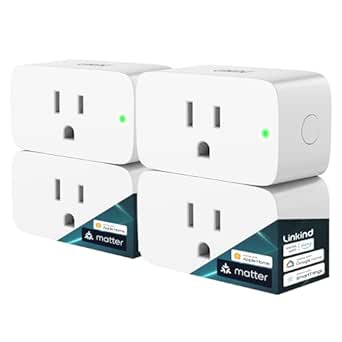
Linkind Matter Smart Plug, 4-Pack
- ✔ Quantity: 4 plugs
- ✔ Power capacity: 15 A; 1800 W
- ✔ Wi-Fi: 2.4 GHz; IPv6 required

Pzloz 24W Adjustable LED Desk Lamp with Remote
- ✔ Wattage: 24 W
- ✔ Color temperature: 3000K–5500K
- ✔ Brightness: 5 levels, 20%–100%

Govee RGBIC Smart Table Lamp 2
- ✔ Brightness: Up to 500 lumens
- ✔ Color temperature: 2700K–6500K
- ✔ Wattage: 24 W
Difficulty: Beginner | Time: 1–2 hours
What You’ll Need
Tools & Materials:
- Smartphone or tablet with the manufacturer’s app store access
- Wi-Fi access and your network name and password
- Smart accessories such as a lamp, smart plug, desk light, or room sensor
- A power outlet near each accessory
- A measuring tape or ruler for checking placement
Knowledge:
- Basic ability to install apps and connect a device to Wi-Fi
- Ability to follow the accessory manufacturer’s setup and electrical safety instructions
Check each device’s power rating and supported Wi-Fi band before buying or installing it. Many accessories need a 2.4 GHz Wi-Fi network. Keep plugs and adapters within their rated load, and do not use a smart plug to control equipment that the manufacturer says must not be switched remotely. Avoid placing cords where a chair or footrest can catch them.
Linkind Matter Smart Plug, 4-Pack
For a home office that already has a desk fan, task light, or other compatible plug-in device, Linkind’s four-pack can add schedules, timers, voice commands, and remote access without replacing that equipment. That makes it the most adaptable pick in this group: unlike the Pzloz and Govee lamps, it controls devices we already own rather than supplying its own light. Matter support spans Apple Home, Alexa, Google Home, and SmartThings, with AiDot also available.There is a setup condition to account for. Most of the named platforms require a compatible hub; AiDot is described as usable without one. The plug also requires 2.4 GHz Wi-Fi and IPv6, so compatibility on paper does not guarantee a straightforward setup on every network. Local LAN operation when the internet is unavailable is a useful plus, but this is still the wrong choice if we need a lamp included in the box or want to avoid checking network and hub requirements.
Pros:
- Four plugs can cover multiple compatible devices.
- Matter works with several major smart home platforms.
- Schedules, timers, remote access, and voice control support routine automation.
- Fire-resistant materials and overload protection are specified.
Cons:
- Most listed platforms require a compatible hub.
- Requires 2.4 GHz Wi-Fi and IPv6.
- Does not provide lighting or another desk accessory by itself.
Best for: We want to automate several compatible office devices across a supported smart home platform.
Not ideal for: We need a complete desk lamp, lack a compatible hub for our preferred platform, or cannot meet the 2.4 GHz and IPv6 requirements.
Bottom line: Choose the Linkind four-pack when we want broad, scheduled control over existing office devices and can meet its hub and network requirements.
“Choose the Linkind four-pack when we want broad, scheduled control over existing office devices and can meet its hub and network requirements.”
Pzloz 24W Adjustable LED Desk Lamp with Remote
When the priority is seeing paper, a keyboard, or detailed work clearly, the Pzloz adjustable lamp is the most work-focused lighting option here. Its two light sources, flexible arms, and rotating head let us direct illumination toward the task, while five color temperatures and five brightness levels provide more control than the Govee’s ambient-first design. A wireless remote also makes changing settings convenient when the lamp is positioned across the desk.The tradeoff is that this is a corded tabletop lamp, not a smart-home product with the listed platform integrations of the Govee or Linkind. Its adjustable structure needs desk space, and buyers looking for app scenes or voice control should look elsewhere. Compared with the Govee, the Pzloz prioritizes practical positioning and task light over color effects; compared with the Linkind plug, it gives us a dedicated light rather than automation for existing gear.
Pros:
- Five color temperatures and five brightness levels provide task-specific adjustment.
- Arms and lamp head rotate to aim light where it is needed.
- Wireless remote changes settings without reaching for the lamp.
- High CRI and glare and flicker reduction features are specified.
Cons:
- Corded power limits placement.
- Tabletop base and adjustable arms occupy desk space.
- No smart home platform compatibility is listed.
Best for: We read, study, draw, or do other desk tasks where adjustable, directed light is the main need.
Not ideal for: We want Matter, voice control, colorful scenes, or a compact lamp that takes minimal tabletop space.
Bottom line: Pick the Pzloz when flexible, directed lighting matters more than app-based smart controls or colorful ambience.
“Pick the Pzloz when flexible, directed lighting matters more than app-based smart controls or colorful ambience.”
Govee RGBIC Smart Table Lamp 2
The Govee RGBIC Table Lamp 2 suits a desk where lighting needs to change with the time of day or the room’s mood. It combines warm-to-cool white light with multicolor effects, preset scenes, music synchronization, app control, and touch control. Matter and integrations with Alexa, Google Home, and SmartThings give it a stronger smart-home case than the Pzloz task lamp. Compared with the Linkind plug, it controls its own lighting directly rather than turning another device into a connected one.Its role is more ambient than task-focused. The supplied details list 500 lumens, while the Pzloz emphasizes adjustable arms and directed work light; for detailed reading or drawing, the Pzloz is the more purpose-built option. The Govee also needs a cord and tabletop placement, and its pat-to-wake behavior has a setup caveat: Bedtime Switch must be enabled in the app, and pat-to-wake only turns the lamp on. Choose it for atmosphere and smart controls, not as a replacement for every dedicated task light.
Pros:
- Warm-to-cool white light plus multicolor effects support different settings.
- Matter, Alexa, Google Home, and SmartThings compatibility is listed.
- App and touch controls include timers, schedules, and memory.
- Preset scenes and music synchronization add ambient options.
Cons:
- Corded power and tabletop placement constrain setup.
- Pat-to-wake requires Bedtime Switch and only turns the lamp on.
- Its ambient features are less task-focused than the Pzloz’s adjustable arms and directed light.
Best for: We want app-controlled ambient light, color scenes, and smart-home integration near a desk or bedside workspace.
Not ideal for: We need strongly directed task lighting, a water-resistant lamp, or a cordless setup.
Bottom line: Choose Govee for connected, customizable room lighting, and pair it with a task lamp if detailed work needs more directed illumination.
“Choose Govee for connected, customizable room lighting, and pair it with a task lamp if detailed work needs more directed illumination.”
As an Amazon Associate we earn from qualifying purchases.
Before You Start
Write down what you want the accessories to do: for example, turn on a desk lamp at the start of work, switch off a monitor charger at the end of the day, or show when the room is too warm. Start with one or two devices. Confirm that your phone is connected to the Wi-Fi network the accessories will use, and install the official app for each brand. If you use multiple ecosystems, check whether the devices work together before relying on shared routines or voice control.
Step-by-Step Instructions
Step 1: Choose the tasks each accessory will handle
List the small office tasks you want to control, then match each task to a device. Use a smart lamp or bulb for scheduled lighting, a smart plug for a compatible lamp or charger, and a temperature or humidity sensor when room conditions are hard to judge. Pick accessories that solve a real daily annoyance rather than adding devices for their own sake.
Tip:Do not automate equipment that needs a person to confirm it is safe before starting, such as a space heater, unless both the device maker and smart plug maker explicitly approve that use.
Check: You have a short list of devices, with one clear job for each.
Step 2: Check compatibility and placement
Read the packaging or product page for each accessory and confirm its Wi-Fi requirements, app support, voice assistant support if needed, and power rating. Measure the distance to the router or access point, then choose a location with a reliable signal and an accessible outlet. Keep sensors away from direct sunlight, vents, and heat from computers if you want useful room readings.
Tip:Some devices require a 2.4 GHz network during setup. If pairing fails, check the maker’s instructions for how to connect when your router combines 2.4 GHz and 5 GHz under one network name.
Check: Every accessory has a suitable outlet, a practical location, and network support that matches your setup.
Step 3: Prepare the workspace and devices
Clear the area where each accessory will go. Unplug the lamp or other compatible equipment before connecting it to a smart plug. Keep ventilation openings clear, route cables along a wall or desk edge, and leave any device buttons or reset controls reachable. Plug in the accessory only as directed by its manufacturer.
Tip:Do not stack adapters or cover power supplies with papers, fabric, or other items that can trap heat.
Check: Devices sit securely, cords do not cross walking paths, and controls remain accessible.
Step 4: Connect each accessory to its app
Open the manufacturer’s app, create or sign in to your account if required, and choose the option to add a device. Follow the on-screen steps in order, including any request to scan a code, enable Bluetooth, or put the accessory into pairing mode. Name each device by its location and purpose, such as “Desk lamp” or “Monitor charger.”
Tip:Add one device at a time. If the app asks for location or Bluetooth access during setup, grant only the permissions needed for pairing and device control.
Check: The app shows each accessory as connected, and its name makes its location clear.
Step 5: Test manual control before making routines
Use the app to switch each device on and off. For a smart bulb, check that brightness and color controls respond. For a smart plug, verify that the connected item turns off and back on as expected. Compare a sensor’s reading with a nearby thermometer or hygrometer if you have one, allowing a few minutes for readings to settle.
Tip:Keep the physical switch for a smart bulb turned on; cutting power at the wall can make the bulb unavailable to the app.
Check: Each device responds reliably to manual commands, and sensors show plausible readings.
Step 6: Set useful schedules and controls
Create one simple routine at a time, such as turning on the desk light shortly before your workday or switching it off at your usual finish time. Set the days and time zone, then check whether the routine follows sunrise, sunset, or a fixed clock time. If your system supports a desk-side button or voice control, configure the most-used action and test it from your normal working position.
Tip:Keep a manual way to control important lights and outlets. Avoid routines that turn off a device while you are using it or that leave equipment powered when you are away longer than intended.
Check: The routine uses the intended days and times, and you can still control the accessory manually.
Step 7: Run a workday check
Use the workspace for at least one normal work session. Check that lights do not cause screen glare, sensor readings remain believable, and automated actions happen when expected. Confirm that your Wi-Fi remains connected and that no cable or accessory interferes with your chair, desk adjustment, or access to an outlet. Adjust placement or schedules based on what you observe.
Tip:If a routine runs at the wrong time, check the app’s time zone, daylight-saving setting, and whether the schedule uses your current location.
Check: The setup supports your work session without missed commands, unwanted switching, or new cable hazards.
Common Mistakes to Avoid
- Buying a device before checking its Wi-Fi or ecosystem requirements. — Confirm the required network band, app, and platform support before purchase or setup.
- Adding too many automations at once. — Start with one routine, observe it during work, and add another only when the first behaves as intended.
- Using a smart plug with equipment that should not be switched remotely. — Check both manufacturers’ instructions and never exceed the plug’s listed electrical rating.
- Placing a sensor beside a vent, sunny window, or computer exhaust. — Move it to a shaded, open area representative of the room where you work.
Troubleshooting
Problem: The accessory does not appear during pairing.
Solution: Move it closer to the router, confirm the phone is on the correct Wi-Fi network, and repeat the maker’s pairing-mode steps. Check whether the device requires 2.4 GHz Wi-Fi or a Bluetooth permission to finish setup.
Problem: The device appears offline after setup.
Solution: Check that it has power and that the router is online. Restart the accessory using the manufacturer’s instructions, then reopen the app. If the connection remains unstable, try a location with a stronger signal.
Problem: A schedule runs at the wrong time.
Solution: Review the device’s time zone, location, and daylight-saving settings. Check whether the schedule is tied to sunrise or sunset rather than a fixed time, then save and test the corrected schedule.
Problem: A sensor reading seems unrealistic.
Solution: Move the sensor away from direct sun, vents, and warm electronics. Wait several minutes for the reading to update, then compare it with another room instrument if available.
What Success Looks Like
Your office accessories appear in their apps under clear names, respond to manual commands, and follow only the schedules you configured. Lights provide comfortable visibility without screen glare, sensor readings reflect the room reasonably well, and cords and plugs remain safely placed. You can still use physical controls when needed, and a normal work session completes without connectivity problems or unwanted switching.
Next Steps
After a few workdays, review which routines save effort and remove any that interrupt your work. Check app and device updates periodically, and revisit schedules when your work hours change. If adding more accessories, confirm that the network can support them and keep a simple list of device names, locations, and reset instructions for future troubleshooting.
Frequently Asked Questions
Do smart office accessories need a smart home hub?
Some connect directly to Wi-Fi, while others require a hub or bridge. Check the product’s requirements before setup; the app should identify any required hub during pairing.
Can I use smart plugs with my computer?
Use a smart plug only if the computer or equipment maker allows power to be cut remotely. Abruptly removing power can interrupt work or damage unsaved data. A smart plug is often better suited to a compatible lamp or charger.
Why does my smart bulb stop responding after I turn off the wall switch?
The wall switch removes power, so the bulb cannot receive app commands. Leave the switch on and use the app, a compatible button, or a routine to control the bulb.
Will these accessories work if my internet goes down?
Behavior varies by product. Some local controls or schedules may continue, while remote app control and cloud routines may stop. Check the manufacturer’s offline behavior and keep physical controls available.