
TL;DR

Get business pricing on your home office setup
- Business-only prices and quantity discounts
- Tax-exempt purchasing
- Multiple users, one account, clear invoices
Proper laptop ergonomics means elevating your screen to eye level, using an external keyboard and mouse, and adjusting your workspace for comfort. Recent innovations make these setups easier and more adaptable, helping you avoid strain during long hours.
If you’ve ever felt a stiff neck after a long work session or noticed your wrists ache after typing all day, you’re not alone. Small adjustments to your workspace can make a big difference. The right setup isn’t about fancy gadgets — it’s about aligning your body with what your work demands.
In this guide, you’ll learn how to elevate your laptop screen, choose the best stands, and set up external keyboards and mice. These simple tweaks can help you sit comfortably, avoid pain, and stay focused. Your body will thank you for it.
Elevate your laptop to eye level with a quality stand to prevent neck strain.
Use an external keyboard and mouse to keep your wrists neutral and reduce repetitive strain.
Adjust your chair and desk so your elbows are at a 90-degree angle, supporting good posture.
Invest in portable, adjustable accessories that suit your work environment and needs.
Stay aware of new ergonomic tech, but prioritize simple, consistent habits for comfort.
Laptop Ergonomics: Stands, Keyboards & Screen Height
A comfortable setup is less about fancy equipment and more about alignment. Elevate the screen, separate the input devices, and support your body so long work sessions do not become a daily strain.
Small, consistent changes can make computer work more comfortable, focused, and sustainable.
Suggested viewing distance
Target elbow angle
Bring the work up to you.
The top edge of the display should sit at or slightly below eye level. This encourages a neutral head position, reduces downward neck tilt, and lets the eyes look slightly downward without forcing the shoulders upward.
Raise the display
Use a stand or stable riser until the top of the screen meets your natural eye line.
Center the laptop
Keep the screen directly in front of you to avoid repeated neck rotation.
Set the distance
Start at roughly an arm’s length, then adjust text size instead of leaning forward.
Three pieces, one balanced posture.
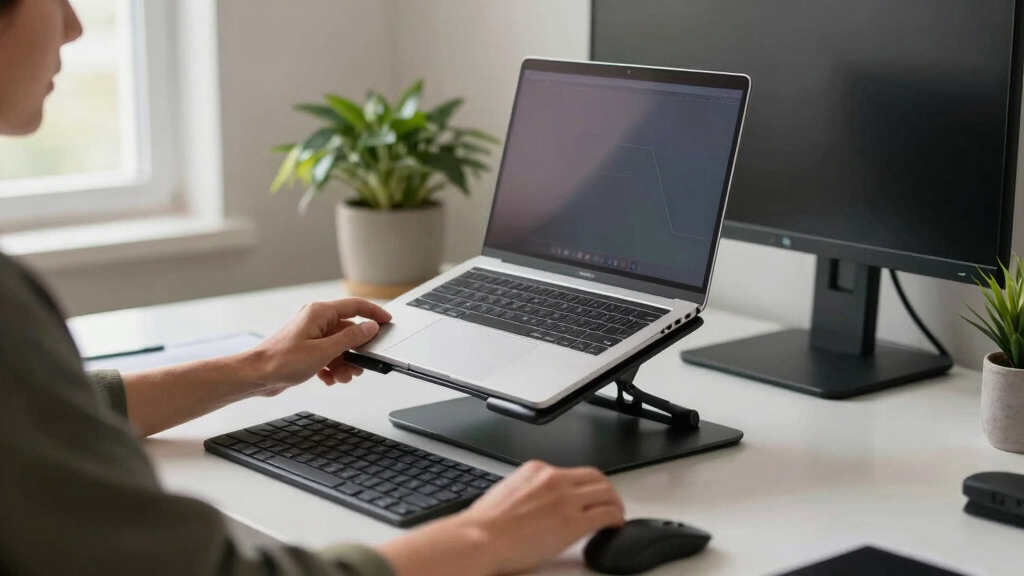
Elevating a laptop creates a new problem: its built-in keyboard becomes too high to use comfortably. A stand works best as part of a three-part system with separate input devices.
Adjustable stand
Choose multiple height and tilt settings, a secure base, and enough ventilation around the device.
Priority: stability firstExternal keyboard
Place it near elbow height so the forearms remain roughly parallel to the floor and the wrists stay straight.
Priority: neutral wristsExternal mouse
Keep it close to the keyboard. Reaching outward repeatedly can load the shoulder even when the wrist feels comfortable.
Priority: relaxed shoulder| Stand type | Adjustability | Portability | Stability | Best fit |
|---|---|---|---|---|
| Foldable travel stand | ✓Good | Excellent | Moderate | Hybrid work |
| Desktop riser | ✓Good | Limited | Excellent | Permanent desk |
| Articulating arm | Excellent | Limited | ✓Strong | Small workspaces |
| Fixed-angle stand | Basic | ✓Good | Good | Simple setup |
Posture is a connected chain.
A screen can be perfectly positioned while the rest of the workspace still creates strain. Align the chair, desk, keyboard, mouse, and feet as one system rather than adjusting each item in isolation.
The five-point posture check
- 1Head balanced over the shoulders, not reaching toward the screen.
- 2Shoulders relaxed with elbows close to the torso at roughly 90 degrees.
- 3Wrists straight, with the keyboard and mouse kept within easy reach.
- 4Lower back supported and hips level with or slightly above the knees.
- 5Feet flat on the floor or resting securely on a footrest.
One adjustment changes the whole chain.
Ergonomic benefits compound. The stand corrects the viewing height, external devices free the hands, and a supported chair helps the improved position last through the work session.
Elevate
Raise the screen to the natural eye line.
Separate
Add an external keyboard and mouse.
Align
Place elbows, wrists, and shoulders neutrally.
Support
Set the chair, lumbar support, and feet.
Move
Change posture and take regular visual breaks.
Comfort is a productivity tool.
A well-adjusted ergonomic setup may reduce musculoskeletal discomfort by up to 60%. Treat the number as a reason to act, not a promise: individual needs vary, and frequent movement still matters.
Make the setup work anywhere.
Recent ergonomic accessories emphasize portability, modular adjustment, foldable designs, and smart reminders. Useful technology can help, but repeatable habits remain the foundation.
How high should the laptop screen be?
Place the top of the display at or just below eye level, about 15–20 inches away or roughly an arm’s length.
Which stand features matter most?
Prioritize stability, useful height adjustment, tilt control, device fit, and airflow. Add portability if you move between locations.
Do external input devices really matter?
Yes. Once the screen is raised, a separate keyboard and mouse let the elbows and wrists remain in a more neutral position.
Are smart ergonomic accessories necessary?
No. Posture reminders, auto-brightness, and modular stands can help, but consistent alignment and movement deliver the core benefit.
How High Should Your Laptop Screen Be? It’s All About Eye Level
Your laptop screen should be at eye level or slightly below to prevent neck strain. When your screen is too low, you tend to tilt your head downward, which can cause neck stiffness and long-term cervical issues. Conversely, if it’s too high, you might elevate your shoulders, leading to tension and discomfort. Finding that optimal height—about 15-20 inches from your eyes—supports a neutral head position, reducing muscular strain and fatigue. This alignment allows your neck muscles to relax and prevents the development of chronic pain over time. Achieving this often requires a stand, but the benefit is a significant decrease in discomfort and improved focus, as your body remains in a natural, balanced posture.
Proper screen height also impacts your eye health. When your screen is at or just below eye level, your eyes are naturally relaxed, reducing dry eye symptoms and visual fatigue. This setup encourages you to maintain a comfortable head position, which can improve concentration and reduce the need for frequent breaks caused by discomfort.
Products Worth Considering

EGO Power+ PST3041 3000W Nexus Portable Power Station with Four 5.0Ah Batteries

Greenworks 60V 20-Inch Brushless Snow Thrower with 4.0Ah Battery and Charger

DEWALT 20V MAX 3-Tool Brushless Power Tool Combo Kit (DCK360D3)
As an affiliate, we earn on qualifying purchases.
Choosing the Right Laptop Stand: Adjustable, Portable, and Stable
Choosing the right laptop stand is more than just elevating your device—it’s about creating a sustainable ergonomic environment. An adjustable stand allows you to tailor the height and angle to your specific needs, which is crucial because different tasks may require different postures. For example, drafting a detailed report might benefit from a higher, more upright position, while casual browsing might be more comfortable at a lower angle. Portability ensures you can maintain ergonomic standards across various locations, from home offices to coffee shops, but stability is non-negotiable—an unstable stand can cause accidental drops or encourage poor posture as you compensate for wobbling. The tradeoff often lies in choosing between lightweight, foldable options that may sacrifice some stability versus heavier, more robust models. Prioritizing stability and adjustability ensures your setup promotes good posture without constant readjustment, which can lead to fatigue and frustration. Ultimately, a good stand is an investment in your comfort, reducing neck and shoulder strain, and supporting longer, more productive work sessions.
Why External Keyboard and Mouse Are Game-Changers
Using an external keyboard and mouse is a fundamental shift toward ergonomic efficiency because it allows your body to adopt a healthier posture. When your laptop keyboard is directly on the device, your wrists often bend at awkward angles, and your arms are forced into unnatural positions, increasing the risk of repetitive strain injuries like carpal tunnel syndrome. External peripherals enable you to position your keyboard and mouse at a height that aligns with your elbows and forearms, promoting a neutral wrist position. This reduces tension in your wrists, forearms, shoulders, and neck, preventing discomfort during prolonged use. Additionally, with an external setup, you can place your laptop screen at eye level—eliminating the need to look down—which alleviates neck strain. The tradeoff involves slightly more desk space and initial investment, but the health benefits—such as reduced pain and increased endurance—far outweigh these inconveniences. Over time, this setup can significantly decrease the fatigue and discomfort associated with long hours of work, making your workspace more sustainable and less harmful to your body.
Setting Up Your Workspace to Prevent Neck and Back Pain
Creating an ergonomic workspace is about understanding how each component influences your posture and comfort. Elevating your laptop with a stand is the first step—this ensures your neck stays in a neutral position, avoiding the downward tilt that causes neck tension. Once elevated, placing an external keyboard and mouse at elbow height allows your arms to rest naturally, preventing shoulder and upper back strain. Your chair should support your lower back with lumbar support and be adjustable so your hips are level with or slightly above your knees. This positioning encourages a slight forward tilt of the pelvis, which maintains the natural curve of your lower spine. The key is to think of your body as a chain—if one link is misaligned, discomfort propagates. Proper setup reduces the tendency to slouch or lean forward, common culprits in back and neck pain. Remember, small adjustments—like ensuring your feet are flat on the floor and your monitor is directly in front of you—have a compounded positive effect on your overall posture. The goal is to sustain a balanced, relaxed position during long work sessions, minimizing the risk of chronic pain.
Latest Trends in Laptop Ergonomics: Flexibility, Portability, and Tech
Recent developments in ergonomic technology focus on making setups more adaptable and user-friendly, recognizing that flexibility is key for diverse work environments. Lightweight, foldable stands now enable quick transitions from sitting to standing, supporting dynamic work styles and reducing prolonged static postures that can cause discomfort or circulatory issues. Adjustable stands with multiple tilt options allow users to customize their viewing angles based on task requirements, reducing neck strain and eye fatigue. Innovations like smart monitors with height-adjustable stands and integrated health features—such as posture reminders and auto-brightness—are designed to promote healthier habits without requiring manual adjustments. These tools help maintain optimal ergonomics effortlessly, whether you’re working at home or on the go. The tradeoff might involve higher costs or a learning curve, but the long-term health benefits—like reduced musculoskeletal issues—are significant. Embracing these trends empowers users to create ergonomic setups that are both practical and adaptable, fostering healthier work routines in an increasingly mobile and flexible work landscape.
Frequently Asked Questions
How high should my laptop screen be for optimal ergonomics?
The top of your laptop screen should be at or just below eye level, approximately 15-20 inches from your eyes. This minimizes neck strain and keeps your head in a natural position.What are the best types of laptop stands?
Adjustable, portable stands that can be tilted and raised are ideal. Look for stable designs that fit your height and workspace, making it easy to switch between sitting and standing if needed.Do I need an external keyboard and mouse if I use a laptop?
Yes. External peripherals allow you to position your wrists neutrally and keep your arms at a comfortable height, reducing strain during long work sessions.How can I set up my workspace to prevent neck and back pain?
Elevate your laptop using a stand, use an external keyboard and mouse at elbow height, and adjust your chair and desk so your body aligns naturally. This setup encourages good posture and reduces discomfort.Are ergonomic accessories worth the investment?
Absolutely. They help prevent discomfort and injuries, making your work more comfortable and sustainable over time. Even small investments can lead to big health benefits.Conclusion
Good ergonomics isn’t about buying a set of gadgets — it’s about aligning your workspace with your body. A simple stand, an external keyboard, and proper desk height can turn hours of work into a more comfortable experience. Your neck, shoulders, and wrists will thank you.
Think of your workspace as a tool for your well-being. Small adjustments today can prevent pain tomorrow. So, set up wisely — your body will thank you every day you sit down to work.