TL;DR
Smart home office accessories use connectivity, sensors, software, or automation to make your workspace easier to control. Start with a specific need—such as glare, cable clutter, or wasted power—then check compatibility, privacy, and fit before buying. A well-placed lamp and one reliable automation can help more than a desk full of apps.
Your desk lamp clicks on, the monitor wakes, and a small tangle of cables catches your sleeve before the first meeting even starts. A few smart home office accessories can smooth out those daily snags, but a device earns its place by solving a real problem—not by having an app.

Get business pricing on your home office setup
- Business-only prices and quantity discounts
- Tax-exempt purchasing
- Multiple users, one account, clear invoices
Smart office accessories use sensors, software, wireless connections, or automation to add control or feedback to your workspace. You’ll find them in lamps, plugs, desks, fans, chargers, and air monitors. This guide explains what they are, which categories can help, and how to build a setup that stays simple enough to use.
Think of your workspace like a kitchen: a good tool saves steps, while a drawer full of gadgets just makes the drawer harder to close. Start with the irritation you notice most often, then match it to a feature you’ll actually use.
Start with a recurring problem, such as glare, posture, cable clutter, or forgotten lights.
Check a smart plug’s rating and the appliance instructions before scheduling power changes.
Matter can improve compatibility for supported devices, but check whether your specific features work on your platform.
Prioritize physical comfort, reliability, and manual controls over extra app features.
Add one automation, use it for a week, and keep it only if it makes work easier.
What Smart Accessories Can Actually Do for Your Desk
Smart home office accessories connect a familiar workspace tool to controls, feedback, or routines that make it easier to use. A lamp might follow a schedule, a plug might switch off a compatible monitor setup, and a desk might save sitting and standing heights. The smart feature adds a layer of control; it doesn’t automatically make the underlying product better.
For example, a student who starts studying at the same time each evening could schedule a desk light to turn on before opening a laptop. A remote worker might use an occupancy sensor to switch a lamp off after leaving the room. These small routines can make a workspace feel ready, like a stage set before the first scene.
The strongest purchases solve recurring friction: screen glare, awkward posture, distracting noise, cable clutter, or equipment left on overnight. A smart bulb won’t fix a lamp that shines straight into your monitor, and an air-quality monitor reports conditions without necessarily changing them.
Products may use Wi-Fi, Bluetooth, a hub, local controls, or a mix. Some remote features rely on an internet connection or an account. Matter aims to help supported smart-home devices work across platforms, but compatibility still varies by device, platform, and feature. Check the current product documentation before you buy.
Products Worth Considering

DEWALT DWS520K 6-1/2-Inch Track Saw Kit

Makita XPS01PTJ 18V X2 LXT (36V) Brushless Cordless 6-1/2-Inch Plunge Circular Saw Kit with Two 5.0Ah Batteries

EGO POWER+ LM2114 21-Inch Cordless Electric Lawn Mower with Battery and Charger
As an affiliate, we earn on qualifying purchases.
Choose Lighting, Power, and Comfort That Fix Daily Friction
Smart home office accessories work best when each one targets a specific daily annoyance, such as glare, wasted power, or a desk that never feels comfortable. Lighting, power management, ergonomics, sound, and air comfort are common categories, but the useful feature depends on how you work. That distinction matters because a feature that is convenient in one routine can be another point of failure in another: a schedule is predictable for a regular study block, but less helpful when work hours change each day.
A desk lamp with adjustable brightness and color settings can help you adapt the light as the day changes. Position it to light your notes without reflecting sharply off the screen. For instance, if a video call leaves your face in shadow, move a lamp toward the front and side of the monitor before buying a brighter bulb. Changing the lamp’s position costs nothing and addresses the cause; raising brightness without fixing placement may make the screen glare worse or leave the rest of the room in harsh contrast.
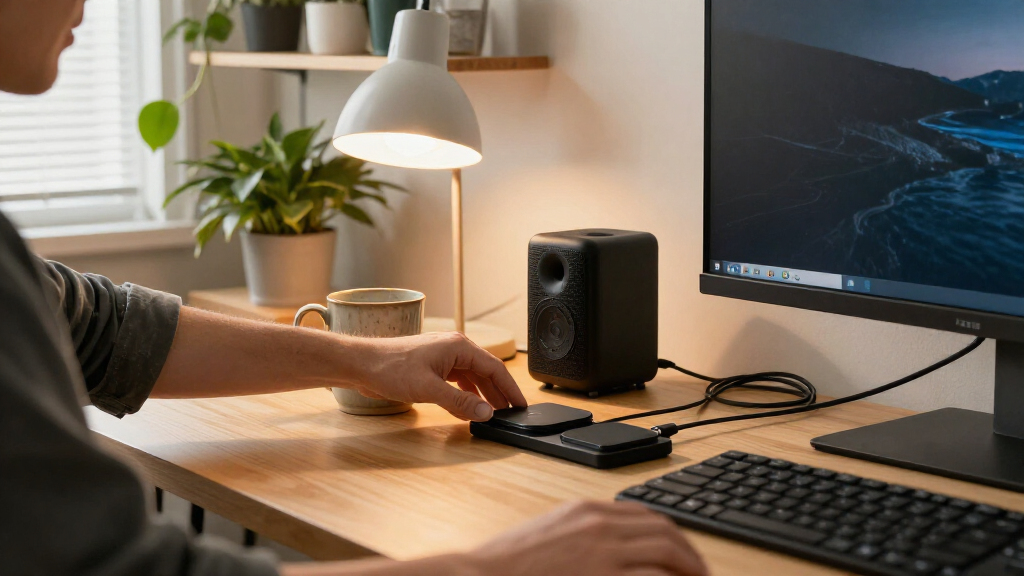
Smart plugs can schedule or remotely control compatible equipment, and some report energy use. Read the plug’s rating and appliance instructions; don’t use one to switch off equipment that needs to stay on or cannot safely handle an unexpected shutdown. A worker who forgets a separate task lamp could schedule it to turn off after work, while leaving a router on its regular power source. Energy readings can reveal which devices draw power, but they don’t show whether the convenience is worth the cost or guarantee savings. Scheduling only reduces use when it changes what you would otherwise have done.
For posture and movement, prioritize an adjustable chair, a stable desk, and a monitor at a comfortable height. Sit-stand desks may offer presets or reminders, but those features help only if the desk fits your body and room. Presets can make switching positions easier; reminders can become noise if they interrupt focused work or encourage movement at unsuitable times. Headphones, fans, and air monitors can also help with focus or comfort. A monitor measures conditions; it doesn’t clean the air by itself, so its readings matter only if they help you decide what action to take.
- Lighting: Aim for even light and less screen glare.
- Power: Check ratings and what happens when a device switches off.
- Ergonomics: Choose fit and adjustability before app features.
- Sound and air: Check microphone privacy and what a monitor can actually change.
Compare the Features Before You Add One More App
The right smart home office accessories depend on the problem you want to solve, the controls you already own, and how much setup you’re willing to manage. A feature comparison helps you see whether connectivity offers a useful daily improvement or merely adds another app to check. This is a tradeoff in ongoing effort: a schedule may save a few small actions each day, but separate accounts, hubs, and troubleshooting can outweigh that saving if the devices rarely need adjustment.
Imagine your desk lamp uses one app, your plug needs a hub, and your desk settings live in a third. If each tool solves a real problem, that setup may suit you; if you have to troubleshoot three accounts just to start work, the convenience has turned into a small chore. Consider how often you’ll use the feature, who else needs control, and what happens if an app or network is unavailable. A physical switch or local control can make a connected device easier to share and less dependent on a working phone.
| Accessory | Useful feature | Check before buying |
|---|---|---|
| Desk lamp or bulb | Schedules, dimming, or voice control | Glare, light placement, and platform support |
| Smart plug | Schedules or energy monitoring | Power rating and safe switching for the device |
| Adjustable desk | Height presets or reminders | Stability, range, and comfortable fit |
| Air monitor | Reports selected conditions | Which readings it measures and what action you can take |
Compatibility deserves a specific check. Matter support can improve interoperability for supported products, but it doesn’t promise that every feature works with every platform. Confirm that the exact lamp routine, plug reading, or desk control you want works with your phone and smart-home system. Otherwise, you may own a device that technically connects but cannot perform the particular routine that made it appealing.
Also count the setup costs in time and money: a hub, subscription, replacement parts, or a second app can change the value of a device. For a shared home office, clear physical controls matter too. Your partner should be able to turn on the lamp without borrowing your phone; that independence also helps if a network outage or account problem interrupts app control.
Build a Smart Workspace One Useful Step at a Time
To make a workspace smarter without making it harder to run, start with one recurring problem, choose a compatible tool, and test its routine before adding more devices. This step-by-step approach lets you see whether the accessory improves an ordinary workday. Testing one change at a time also makes the result easier to interpret: if the desk feels better, you’ll know which adjustment helped rather than guessing which of several new devices made a difference.
- Name the friction. Write down what interrupts you most: glare during calls, a forgotten lamp, or a desk that stays at one height all day. A specific problem gives you a way to judge success, such as fewer interruptions or less screen reflection.
- Try a simple fix first. Move the lamp or raise the monitor before buying connected gear. A small change may solve the issue outright. This also helps separate a layout problem from a control problem; an app cannot compensate for a lamp aimed at the screen.
- Pick the feature you need. If remembering to switch off a lamp is the problem, a schedule may help. If posture is the issue, prioritize a desk or monitor arm that adjusts well. Choose the simplest control that fits your routine, since every extra setting adds something to maintain.
- Check setup and compatibility. Look for hub, account, Wi-Fi, app, and platform requirements. Read the current documentation for the feature you plan to use. This prevents a mismatch between a device’s headline feature and the controls available in your setup.
- Run it for a week. Notice whether the routine saves effort or creates another thing to manage. Keep it if it earns its place. Include ordinary disruptions, such as a late work session or network outage, so you learn whether the fallback controls are usable.
Consider Maya, who works from a spare bedroom and kept leaving her task lamp on after late calls. She scheduled that lamp to turn off at a set time, then kept a manual switch within reach for evenings when she worked longer. That combination gave her a helpful nudge without letting automation dictate her schedule. The manual switch is a useful fallback because it handles the exception without requiring Maya to rewrite the routine.
Automation can feel like a quiet stagehand: it handles a repeatable cue while you focus on the work. Keep a manual control available, especially for shared spaces or routines that might surprise someone else. If an automation acts at the wrong time, simplify it rather than layering on more rules. A routine should reduce decisions overall; if you need to monitor and correct it frequently, its reliability is part of the problem it was meant to solve.
Protect Your Privacy and Keep the Setup Comfortable
Before buying a connected accessory, check what information it collects, what controls it offers, and whether its main function still works if your internet connection drops. Devices with microphones, cameras, or occupancy sensors can reveal more about your habits than a basic lamp, so their privacy settings deserve a close read. The practical tradeoff is between convenience and the amount of data or access the feature needs: remote control may be useful, but it can require an account and an ongoing connection.
A speaker used for meeting calls may offer a mute button, while an occupancy sensor may record activity or send data through a cloud account. Read the privacy controls and account requirements in the product documentation. If you share a workspace, tell other people where sensors are and how to disable them. A visible control and clear explanation let others use the room without wondering when they are being detected.
Security and reliability also show up in ordinary moments. A lamp that needs a cloud connection for every switch may be frustrating during an internet outage; a device with a local control could still work. Some products offer local processing, but don’t assume it removes every account or connection requirement—check what works offline. The distinction matters most for everyday functions: if the app is the only way to turn on a light, a connectivity problem can interrupt a task that used to need no network at all.
Comfort still comes down to the physical workspace. A smart lamp can make brightness easy to change, but placement and screen settings affect glare. A desk can save height presets, but a wobbly frame remains wobbly. In one shared room, two saved desk heights can save setup time each morning, provided both users can reach the controls and the desk remains stable. The convenience of presets is useful only when both people can use them safely and the stored positions suit their bodies.
Read the controls before you buy: check data settings, account requirements, update support, and what still works without internet.
Know When a Smart Feature Earns Its Place
A connected feature is worth keeping when it saves effort often enough to justify its setup, cost, and upkeep. Schedules may help reduce unnecessary use of compatible lights or equipment, but energy savings depend on your habits, device efficiency, and electricity rates. Monitoring use is useful information; it doesn’t guarantee a lower bill. The same test applies to comfort features: a reminder or preset only helps if it changes a routine in a way you find useful.
For example, a student who uses a desk lamp for a regular evening study block could schedule it to switch off afterward. Someone whose study sessions end at different times may prefer a simple physical switch. The useful setup depends on the person’s routine, not the novelty of the feature. A schedule that repeatedly turns off a lamp during real study time creates interruptions, so the convenience depends on how predictable the routine actually is.
Before buying, tally the full commitment: device, hub, subscriptions, replacement parts, app accounts, and time spent maintaining routines. A connected desk with presets may help two people share a workstation, while a single user who adjusts the desk once a month may not get much from the app. The difference is frequency: a feature used every day has more chances to repay its setup than one used occasionally, though it still needs to fit the people and space.
A sensible starter setup might include a lamp positioned to reduce glare, an adjustable monitor setup, and one automation that addresses a repeated annoyance. Add a plug or air monitor only when you can name what you’ll control or change with its information. Your workspace should feel less fussy at the end of a week, not like another dashboard asking for attention. If a device supplies information but no likely action, or automates something you rarely forget, its connected feature may add upkeep without changing your workday.
Frequently Asked Questions
What counts as a smart home office accessory?
A smart home office accessory uses connectivity, software, sensors, or automation to add control or feedback to a workspace. Examples include connected lamps, smart plugs, air monitors, and desks with app-based height presets.
Which smart accessories are most useful for a home office?
That depends on the problem you face most often. A well-positioned lamp, an adjustable monitor setup, or a smart plug for compatible equipment can be useful when each addresses a specific need.
Do smart office accessories need Wi-Fi?
Not always. Some use Bluetooth, a hub, or local controls, while remote access and cloud features often need internet. Check the product documentation to see what works when Wi-Fi is unavailable.
Do Matter devices work with every smart-home system?
No. Matter aims to improve compatibility, but support varies by product, platform, and feature. Confirm that the particular controls you want are supported before buying.
Are smart plugs safe for office equipment?
They can be suitable when the plug’s rating matches the equipment and the appliance can safely tolerate being switched off. Follow both sets of instructions, and avoid controlling devices that must not lose power unexpectedly.
Can smart lighting reduce eye strain?
Adjustable lighting can make a workspace more comfortable by helping you reduce glare and harsh contrast. A smart bulb alone does not prevent eye strain; placement, brightness, screen settings, and breaks also affect comfort.
What privacy risks come with smart office devices?
Devices with microphones, cameras, sensors, or cloud accounts may collect data about use or occupancy. Review their controls, account requirements, data practices, and offline functions before bringing them into a shared workspace.
Conclusion
Choose one workspace annoyance you encounter most days, then buy only the feature that directly addresses it. A well-placed lamp, a comfortable monitor height, and one dependable routine can make your desk feel ready when you sit down.
Keep the setup simple enough that it fades into the background. The best smart workspace is the one that lets you get on with your work while the lamp quietly remembers its cue.