
TL;DR

Get business pricing on your home office setup
- Business-only prices and quantity discounts
- Tax-exempt purchasing
- Multiple users, one account, clear invoices
Docking stations and hubs serve as a single interface to connect multiple peripherals to your laptop, reducing clutter and simplifying setup. Recent advances in Thunderbolt and USB4 standards make them more powerful and compatible than ever. Choosing the right one depends on your device, display needs, and budget.
Imagine a workspace where your laptop connects to everything—monitor, keyboard, mouse, external drives—with just one cable. It’s not a dream, but a growing reality thanks to docking stations and hubs. These devices turn a cluttered desk into a sleek, focused zone, cutting down on tangled cords and setup time.
If you’re tired of juggling multiple wires or constantly plugging and unplugging, understanding how these tools work can revolutionize your work or study space. Here’s what you need to know about the latest in one-cable setups and how they can make your life easier.
A good docking station or hub can turn your cluttered desk into a sleek, single-cable setup, saving time and space.
Latest Thunderbolt 4 and USB4 standards support high data speeds, multiple displays, and charging—perfect for demanding workflows.
Choose your device based on your display, connectivity, and power needs—more ports mean more flexibility, but also a bigger footprint.
Compatibility matters: check port types, standards, and brand-specific features before buying.
Invest in future-proof features like multi-display support and high wattage power delivery to keep your workspace adaptable.
Docking Stations & Hubs: One Cable. Full Desk.
Connect a monitor, keyboard, mouse, storage, Ethernet and power through one laptop cable. Modern Thunderbolt and USB4 devices turn a portable computer into a focused desktop—and make leaving just as effortless.
A central interface for every part of your desk
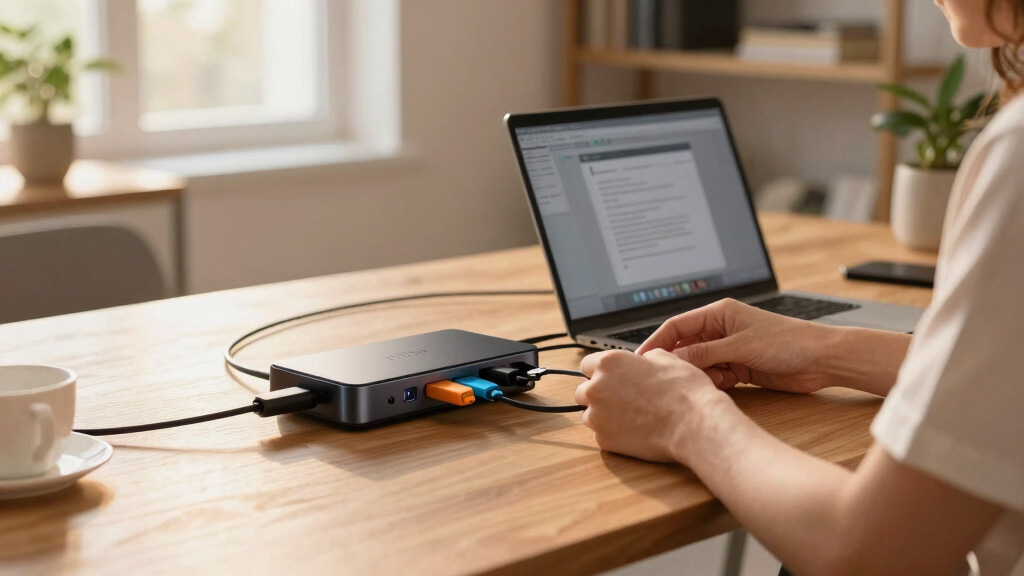
The dock or hub sits between your laptop and its peripherals. Plug everything into that central point once; connect or disconnect the entire workspace with one USB-C or Thunderbolt cable.
One point of control
Bring displays, USB devices, Ethernet, audio and storage together. A single upstream cable replaces repeated plugging and unplugging.
Desk mode in seconds
Move from portable work to a full desktop experience quickly. It is especially useful for hybrid workers, students and shared desks.
Charge while connected
A powered dock can keep a compatible laptop charged through the same cable. Match its output to your laptop’s required wattage.
Thunderbolt 4 raises the one-cable ceiling
The newest high-performance connections combine fast data, video and power. USB4 broadens interoperability, while Thunderbolt 4 provides a clearly defined feature set for demanding desks.
Bandwidth is shared
The advertised 40 Gbps is the connection’s total capacity—not a guaranteed speed for every attached device at once. High-resolution displays, fast storage and networking all draw from the available link.
For the best result, verify the laptop port, cable and dock all support the standard you intend to use.
Choose the form that matches your workflow
A dock is usually built for a permanent, peripheral-heavy workspace. A hub is the compact option for adding a few essential ports while travelling or moving between rooms.
| Feature | Docking station | Portable hub |
|---|---|---|
| Port variety | ✓USB-C, USB-A, Thunderbolt, HDMI, DisplayPort, Ethernet and audio | ~Mainly USB, HDMI and card-reader expansion |
| Size | ~Larger; intended to remain on the desk | ✓Compact and easy to carry |
| Power delivery | ✓Commonly supports laptop charging, often up to 100W | ~Pass-through charging varies by model |
| Display support | ✓Often designed for two or three high-resolution screens | ~Usually one or two outputs with more limitations |
| Best for | ✓Fixed desks, creative work and peripheral-heavy setups | ✓Travel, presentations and lightweight expansion |
| Typical cost | $100–$300+ depending on power and capability | From roughly $30 for basic models |
Match the dock to the laptop—not just the port shape
USB-C describes a connector, but identical-looking ports can support different combinations of data, charging and video. Check the specifications of the laptop and dock together.
Confirm the host port
Look for Thunderbolt 4, USB4 or DisplayPort Alt Mode. A USB-C-shaped port alone does not guarantee video output or maximum speed.
Count displays precisely
Check the supported number, resolution and refresh rate. Laptop hardware and operating-system restrictions can override the dock’s headline claim.
Budget enough power
Choose power delivery close to your laptop charger’s wattage. Remember that some docks reserve part of their total power for attached devices.
Map every peripheral
List USB devices, storage, Ethernet, audio and card readers. Add one or two spare ports to keep the setup flexible as your desk evolves.
Check cable capability
The included or replacement cable must carry the required data, video and power. A charging-only cable can quietly break the entire plan.
Plan for the next laptop
USB4, higher-wattage charging and multi-display support cost more now but may prevent an early replacement after your next upgrade.
Build the workspace in five moves
Connect peripherals to the dock first, then establish the single laptop link. This makes testing simpler and leaves a clean daily connection routine.
Match the dock to your laptop, displays and power needs.
Use a certified USB-C, USB4 or Thunderbolt host cable.
Add monitors, keyboard, mouse, Ethernet and storage.
Attach the dock’s adapter and confirm laptop charging.
Test displays, network, audio and every external drive.
The smartest setup is the compatible one
A premium dock cannot create capabilities the laptop does not have. Confirm video output, charging input, supported displays and operating-system behavior before buying. Then prioritize USB4, adequate power delivery and spare ports for a desk that can grow with you.
Common one-cable questions
Can a docking station run multiple monitors?
Yes. Many docks support two or more displays, but the exact resolution and refresh rate depend on the dock, laptop, connection standard and operating system.
Should I choose USB-C or Thunderbolt?
Choose Thunderbolt for high bandwidth, demanding display setups and fast storage. Choose USB-C when broad compatibility, portability and lower cost matter more.
Will every dock charge my laptop?
No. The dock must support Power Delivery, and its available wattage must suit the laptop. Some high-performance machines may still require their original charger.
Why is a connected display not working?
Check whether the laptop port supports video, confirm the cable specification, update relevant drivers or firmware, and verify the dock’s display limits.
What exactly are docking stations and hubs—and why do they matter?
Docking stations and hubs act as the central hub for all your peripherals. Think of them as a single, streamlined interface that connects your laptop to monitors, keyboards, Ethernet, audio, and more—without having to plug each device separately.
For example, a remote worker might use a Thunderbolt dock to connect two 4K monitors, external speakers, and an Ethernet cable—all through one sleek device. This setup cuts down desk clutter, saves time, and makes switching between work and leisure seamless.
Docking stations tend to be more feature-rich, often designed for specific laptop brands or models, supporting multiple high-resolution displays and high wattage power delivery. Hubs are smaller, portable, and mostly expand USB ports or add simple video outputs. Both aim for a single cable connection—typically USB-C or Thunderbolt—that carries data, video, and power.
Why does this matter? Because in today’s mobile-centric work environment, having a reliable, versatile connection means you can switch from a portable setup to a full desktop experience quickly, without sacrificing performance or convenience. The tradeoff often comes in size, power support, and cost—more capable docks tend to be larger and more expensive, so choosing the right one depends on your specific needs and workspace constraints.
Products Worth Considering

EGO Power+ PST3041 3000W Nexus Portable Power Station with Four 5.0Ah Batteries

WORX 20V Cordless 18-Gauge Brad Nailer, WX842L

WORX 20V PowerShare Cordless Brushless 18-Gauge Brad Nailer, WX838L.1
As an affiliate, we earn on qualifying purchases.
How do recent tech advancements make docking easier and more versatile?
Recent developments in Thunderbolt 4 and USB4 standards have supercharged what these devices can do. Now, a single Thunderbolt 4 port can transfer data at 40 Gbps—enough to support dual 4K displays or a single 8K monitor—while powering your laptop with up to 100W of charging power. This means fewer cables, less clutter, and more flexibility in how you set up your workspace.
Why is this important? Because faster data transfer speeds reduce lag and improve productivity, especially when working with large files or multiple high-resolution displays. Power delivery ensures your laptop stays charged during long work sessions without needing a separate charger, simplifying your desk setup. The tradeoff is that higher-performance docks often come at a higher price and may require newer hardware compatibility, which could be a consideration if you’re using older devices.
Additionally, the rise of USB4, which merges Thunderbolt 3 and USB-C standards, simplifies compatibility across various devices and brands. This interoperability means you’re less likely to encounter connection issues or need multiple different docks, making your setup more future-proof and adaptable.
Compare the main types of docking solutions: Which one suits your needs?
| Feature | Docking Station | Hub |
|---|---|---|
| Port Variety | More ports: USB-C, Thunderbolt, HDMI, DisplayPort, Ethernet, audio | Fewer ports: mainly USB-A, USB-C, HDMI, SD card reader |
| Size & Portability | Bulkier, designed for fixed setups | Compact, portable, easy to carry |
| Power Delivery | Often supports up to 100W charging | Usually limited or none |
| Display Support | Supports multiple high-res displays (2-3 screens) | Supports 1-2 displays, usually at lower resolutions |
Understanding these differences is crucial because your choice impacts your daily workflow. A docking station provides extensive connectivity and is ideal if you need multiple high-resolution monitors, fast data transfer, and reliable power delivery—perfect for a dedicated workspace. Conversely, a hub’s portability makes it suitable for those on the go who need basic expansion without bulk, but it might limit your ability to connect multiple high-res displays or power your device effectively. Weighing these factors helps you balance convenience, performance, and cost based on your specific scenario.
Simple steps to set up your one-cable workspace
- Choose the right dock or hub based on your device and needs.
- Connect it to your laptop using a USB-C or Thunderbolt cable.
- Plug in your monitors, keyboard, mouse, and external drives into the dock.
- Power your laptop through the dock’s Power Delivery port if supported.
- Turn on your monitors and check all peripherals are working.
For example, a student with a MacBook Air can pick a Thunderbolt dock that supports dual 4K monitors, connect it with one cable, and instantly turn their dorm desk into a multi-screen powerhouse. This setup not only saves space but also simplifies troubleshooting and upgrades, as you only need to replace or upgrade one device instead of multiple peripherals. The key is to match your device’s capabilities with the dock’s features to avoid bottlenecks and ensure seamless operation. The tradeoff here is that a more advanced dock might be more expensive and bulkier, so balancing cost and functionality is essential for a sustainable setup.
What should you consider before buying a docking station or hub?
Think about your device’s ports, power needs, and what peripherals you plan to connect. For example, if you want to run two 4K monitors, ensure the dock supports at least that resolution and dual video output.
Checking compatibility is crucial because not all docks work universally. Some are optimized for specific brands or standards like Thunderbolt or USB4, which can affect performance and stability. Compatibility issues might lead to reduced functionality or the need for additional adapters, which can add cost and complexity. Consider your future needs too—if you anticipate upgrading your device or adding peripherals, look for docks with support for USB4, high wattage Power Delivery, and multiple display outputs. This way, you avoid needing to replace your dock soon after purchase, saving time and money in the long run.
Budget is also a factor: basic hubs are affordable but limited in features, while high-end Thunderbolt docks provide extensive connectivity and power support but at a premium. Weighing these tradeoffs helps you find a solution that balances current needs with future growth, ensuring your workspace remains flexible and efficient.
Frequently Asked Questions
Can I connect multiple monitors with a docking station?
Yes. Many docks, especially those with Thunderbolt 3/4 or DisplayPort outputs, support two or even three high-resolution monitors simultaneously. Always check the specifications to match your display needs.Will a docking station charge my laptop?
Most modern docks support Power Delivery, meaning they can charge your laptop through the same cable used for data and video. Verify the wattage supported to ensure it meets your device’s requirements.Are all docks compatible with any laptop?
Not quite. Compatibility varies—some docks work best with certain brands or standards like Thunderbolt or USB4. Always check the manufacturer’s specs and your device’s ports before purchasing.Is it worth investing in a Thunderbolt dock over a standard USB-C hub?
If you require the fastest data transfer, multiple high-resolution displays, and high wattage charging, a Thunderbolt dock offers significant advantages. For basic needs, a USB-C hub might suffice and save money.What’s the biggest benefit of a one-cable setup?
It minimizes desk clutter, simplifies connection/disconnection, and creates a clean, professional workspace—making your day smoother and more organized.Conclusion
Think of a well-chosen docking station or hub as the backbone of your ideal workspace—clean, efficient, and ready for anything. With the right device, you can free up your desk and focus on your work, not the wires.
Imagine starting each day with a single cable, a clean surface, and instant access to all your tools. That’s the power of a true one-cable desk setup—simple, elegant, and built for the modern workflow.