
TL;DR

Get your home office setup delivered free — and shop member deals
- Fast, free delivery on millions of items
- Access to Prime Big Deal Days deals on October 6–7
- Prime Video, Amazon Music and more included
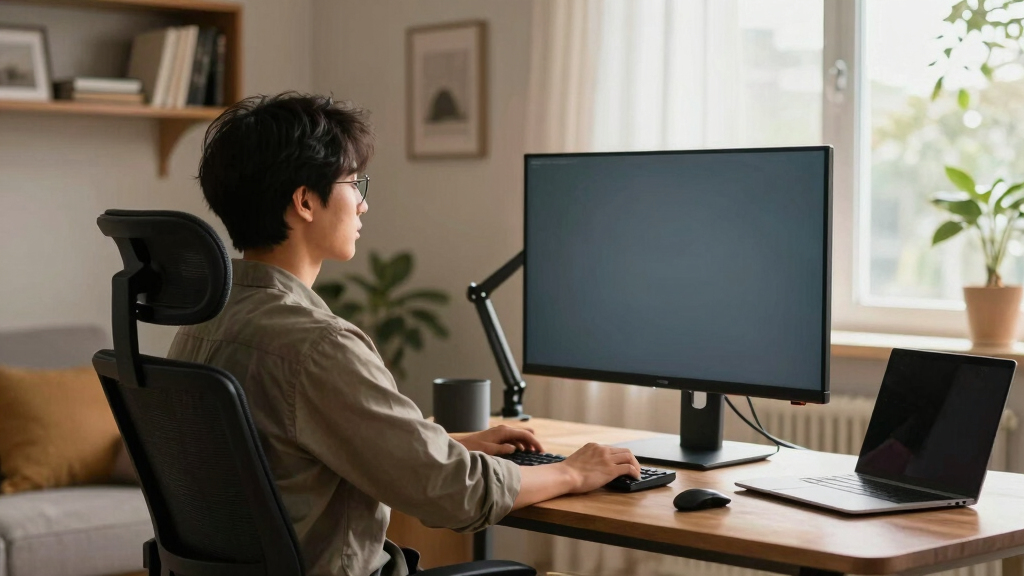
Position your monitor so the top is at or just below eye level, about 20-30 inches away. This setup helps prevent neck strain and eye fatigue, making your workspace healthier and more comfortable.
Position the top of your monitor at or just below eye level to keep your neck relaxed.
Maintain a monitor-to-eye distance of 20-30 inches to reduce eye fatigue.
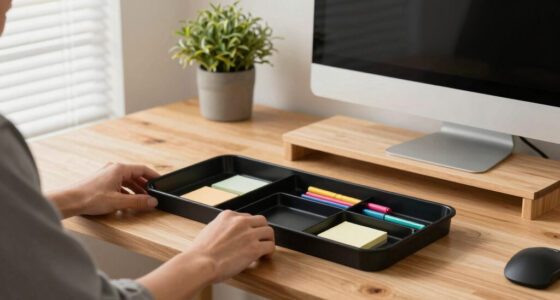
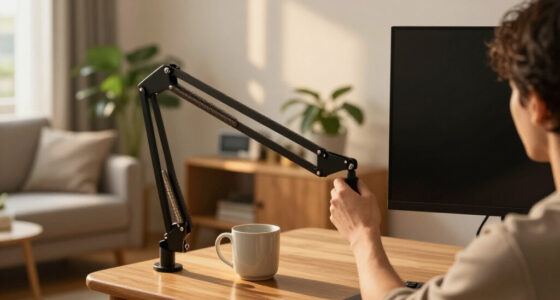
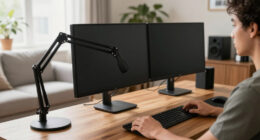
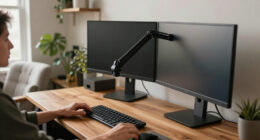
Use adjustable monitor arms or risers if your monitor isn’t height-adjustable.
Avoid sitting too close or too far; find that sweet spot of arm’s length.
Regularly check your posture and take breaks to prevent strain.
What Exactly Is the Eye-Level Rule and Why Does It Matter?
The eye-level rule recommends positioning your monitor so that the top of the screen is at or just below your eye height. This setup keeps your neck in a neutral, relaxed position, preventing strain during hours of work or study.
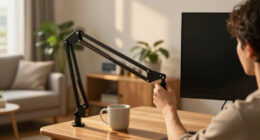
Picture yourself sitting comfortably—your eyes naturally align with the top of the monitor, eliminating the need to tilt your head up or down. According to ergonomic guidelines, this reduces muscle tension and fatigue, especially over long periods.
Why does this matter? When your monitor is improperly positioned—say too high or too low—you force your neck and eyes into unnatural angles. Over time, this can lead to chronic discomfort, headaches, and even musculoskeletal issues. The tradeoff here is between convenience and health; a little effort to adjust your setup can significantly reduce these risks, leading to improved focus and sustained comfort during extended work sessions.
For example, if you’re 5’8” tall, your eyes are roughly 50 inches above the floor while sitting. Position your monitor so its top is near that height, using adjustable stands or risers if needed. This alignment not only relieves strain but also promotes better posture, which is crucial for long-term well-being.
As an affiliate, we earn on qualifying purchases.
How to Adjust Your Monitor for Perfect Eye-Level Placement in 3 Simple Steps
- Measure your eye height: Sit comfortably and measure the distance from your eyes to the floor—say, 50 inches. Recognize that this measurement is your baseline for optimal monitor height, and understanding it helps you tailor your setup to your body.
- Set your monitor so the top is at or slightly below that height: Use height-adjustable stands, monitor arms, or risers to get there. This step is critical because an improperly positioned monitor can cause neck strain or eye fatigue, especially during long periods of use. The tradeoff with fixed setups is that they may require additional accessories or creative solutions to achieve the correct height.
- Check your posture: Sit back, relax your shoulders, and ensure your eyes are aligned with the top of the screen. Adjust until it feels natural. This ongoing check helps you maintain a neutral position, preventing the adoption of poor habits that could lead to discomfort or injury over time.
As an affiliate, we earn on qualifying purchases.
Compare Fixed Monitors vs. Adjustable Mounts — Which Works Better?
| Feature | Fixed Monitor | Adjustable Mount/Arm |
|---|---|---|
| Ease of Adjustment | Limited; requires external risers or stands | Highly flexible; quick height, tilt, swivel adjustments |
| Stability | Depends on stand quality | Generally more stable and secure, especially with quality mounts |
| Cost | Often cheaper initially | Additional investment but more ergonomic benefits |
| Versatility | Less adaptable | Allows precise positioning for different tasks and preferences |
Choosing between a fixed monitor and an adjustable arm isn’t just about convenience—it’s about how well the setup supports your health and productivity. Fixed monitors are often less expensive and simpler but may require additional accessories to achieve ergonomic positioning. On the other hand, adjustable mounts offer flexibility that can accommodate changes in posture, task requirements, or even different users. The tradeoff is the upfront cost versus long-term comfort and health benefits. For those who spend many hours at their desk, investing in an adjustable mount can pay dividends by reducing muscle strain and improving overall well-being.
As an affiliate, we earn on qualifying purchases.
Why Sitting Too Close or Too Far Can Hurt Your Eyes and Neck
Positioning your monitor too close—closer than 20 inches—forces your eyes to work harder to focus, which can lead to digital eye strain, headaches, and fatigue. Sitting too far beyond 30 inches makes it difficult to read small text or see details clearly, causing you to squint or tilt your head forward, which can strain your neck and shoulders. These misalignments can also promote poor posture, such as leaning forward or craning your neck, which over time can cause chronic pain and musculoskeletal problems.
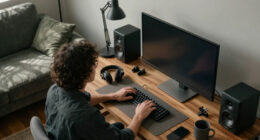
Understanding why these distances matter is about recognizing the balance between clarity and comfort. Sitting too close or too far may seem minor but can significantly affect your health. Sitting too close increases eye strain because your eyes strain to focus on the screen, especially if small text or fine details are involved. Sitting too far reduces visual clarity, prompting unnatural head and neck positions that can cause tension and discomfort. The ideal distance—about an arm’s length—strikes a balance, allowing your eyes to relax while still seeing details clearly. This balance reduces the risk of strain and supports sustained productivity and comfort over long periods.
As an affiliate, we earn on qualifying purchases.
Frequently Asked Questions
How do I know if my monitor is at the right height?
Sit comfortably and ensure the top of your screen is at or just below your eye level. Your neck should stay relaxed, and your gaze should naturally fall onto the middle of the screen without tilting your head.Can I use a regular desk without an adjustable stand?
Yes, but you’ll need to add risers, books, or a sturdy platform to elevate your monitor to eye level. Just make sure the setup is stable and the monitor doesn’t wobble.How often should I check my monitor setup?
Every few weeks, especially if you notice tension or fatigue. Changes in lighting, seating, or even your posture can affect your optimal position. Make small tweaks to stay comfortable.What about sitting on a couch or bed? Does the eye-level rule still apply?
It’s harder to achieve proper ergonomics in those settings. Use cushions or adjustable trays to elevate your device and maintain a neutral, relaxed neck position as much as possible.Are there specific ergonomic guidelines for large monitors or multiple screens?
Yes. For large or multiple monitors, align the primary screen at eye level, and position secondary screens nearby. Maintain consistent height to avoid excessive head turning or tilting, which can cause strain over time.Conclusion
A simple shift—raising or lowering your monitor—can transform your workspace from a pain point into a haven of comfort. Small adjustments save your neck, eyes, and long-term health. Why not give your setup a quick check today? Your body will thank you.Halloween Picks
halloween
As an affiliate, we earn on qualifying purchases.