
TL;DR

Get business pricing on your home office setup
- Business-only prices and quantity discounts
- Tax-exempt purchasing
- Multiple users, one account, clear invoices
Ultrawide monitors offer a seamless, distraction-free workspace ideal for deep work, while dual monitors excel at multitasking. Your choice depends on your specific workflow, space, and budget, with recent tech trends making all options more accessible.
Imagine sitting down for a deep work session. The screen in front of you feels like a vast canvas—no interruptions, no clutter. Choosing the right monitor layout isn’t just about size or price; it’s about creating an environment that keeps your focus sharp and your workflow smooth.
In this guide, you’ll learn how different setups—single, dual, or ultrawide—can shape your productivity. We’ll explore concrete benefits, recent tech trends, and practical tips to help you pick what truly works for your work habits.
Ultrawide monitors provide a seamless, immersive workspace that minimizes window switching, boosting focus.
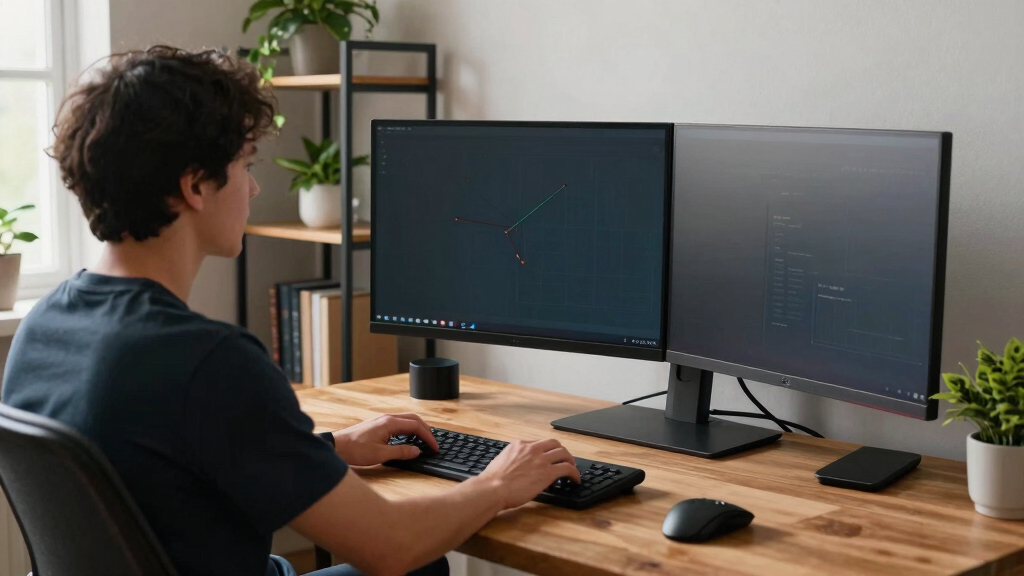
Dual monitors excel at multitasking, allowing dedicated spaces for different tasks, but require more desk space.
Choose your setup based on your work style—single for simplicity, dual for multitasking, ultrawide for immersion.
Recent tech trends like high resolution, curved screens, and USB-C make all options more comfortable and practical.
Proper ergonomic setup—eye level, close distance, tidy cables—maximizes comfort and focus regardless of your choice.
What’s the Difference? Single, Dual, or Ultrawide — Which Fits Your Deep Work Style?
Choosing a monitor setup depends largely on how you work. Single monitors are like having a big, clear canvas—simple and clutter-free. Dual monitors are like having two desks side by side—great for dividing tasks. Ultrawides offer an expansive, seamless view—perfect for multitasking without breaking concentration.
For example, a writer might prefer a large single monitor to keep everything in view, while a programmer doing complex coding might find dual screens help organize tools and documentation. Video editors often lean towards ultrawides for timeline editing, where uninterrupted space makes a real difference.
Understanding these differences helps you see how each setup impacts your workflow. For instance, dual monitors can introduce a physical and visual divide that aids in separating tasks but might also create discomfort if misaligned. Ultrawides provide a continuous workspace, which enhances immersion but can demand more from your hardware and desk space. Single monitors are straightforward but might limit multitasking, forcing you to switch windows more often, which can break your concentration. Recognizing these tradeoffs allows you to choose a setup that aligns with your work style and priorities.
Products Worth Considering

DEWALT 10-Inch Jobsite Table Saw with Scissor Stand (DWE7491X)

DEWALT 8-1/4-Inch Compact Jobsite Table Saw with Rolling Stand (DWE7485 & DW7440RS)

Greenworks 24V 8-Tool Cordless Combo Kit with Power Bank Batteries and 65W Charger
As an affiliate, we earn on qualifying purchases.
How to Pick the Right Setup Based on Your Work and Space
- Assess your work style: Do you multitask or focus on one task at a time? For example, if you often have multiple applications open simultaneously, dual or ultrawide setups enable better organization. If your work is highly focused, a single large monitor might suffice.
- Measure your desk space: Will a large ultrawide fit comfortably, or do you need smaller screens? An ultrawide can be immersive but may require a spacious desk and proper mounting options. Smaller setups are more flexible but may limit your workspace.
- Set your budget: Ultrawide monitors often cost more upfront but can replace multiple screens, potentially saving money in the long run. Dual monitors may be more affordable initially but require additional accessories and desk space.
- Check hardware compatibility: Ensure your graphics card can support your chosen setup without performance issues. For example, ultrawides with high resolutions demand more from your GPU, which might mean upgrading your hardware for optimal performance.
- Think ergonomics: Position screens at eye level, keep them close enough to prevent strain, and ensure your neck remains relaxed. Poor ergonomics can negate the benefits of a well-chosen setup, leading to discomfort and reduced focus over time.
For example, if you often switch between writing, research, and design, dual monitors might give you dedicated spaces for each, reducing mental clutter and cognitive load. Conversely, if your tasks require a continuous flow of information, an ultrawide can consolidate everything into one seamless workspace, facilitating better cognitive integration. The key is to balance physical space, hardware capabilities, and your workflow needs to make a choice that enhances your deep work sessions.
Compare the Pros and Cons of Each Setup at a Glance
| Setup | Benefits | Drawbacks |
|---|---|---|
| Single Monitor | Simple, fewer cables, lower cost, compact | Limited space for multitasking, switching between windows can disrupt focus, potential for clutter if not managed well |
| Dual Monitors | Great multitasking, dedicated spaces for applications, easier window management, can improve workflow efficiency | Requires more desk space, may lead to misalignment if not set up properly, increased cable management complexity, potential for ergonomic issues if not positioned correctly |
| Ultrawide | Seamless, continuous workspace; reduces window switching; ideal for wide applications like video editing or data analysis; immersive experience | Higher initial cost; hardware demands increase; compatibility issues with some software or hardware; may require a large desk or mounting solutions |
Choosing among these options involves considering these tradeoffs. While ultrawides provide an immersive experience that can streamline workflows, they demand more from your hardware and workspace. Dual setups excel at multitasking but require careful ergonomic planning and space. Single monitors are straightforward but might limit multitasking efficiency. Understanding these nuances helps you select a setup that aligns with both your work habits and your environment.
What Recent Tech Trends Make These Setups Smarter and Easier?
Latest monitor tech is reshaping how we work. Higher resolutions like 4K and 5K ultrawides make details pop and reduce eye strain, which is crucial for long deep work sessions. Curved screens mimic natural eye movement, easing fatigue and making large displays more comfortable to view for extended periods, especially on ultrawides where peripheral vision plays a bigger role. USB-C and Thunderbolt connections simplify cable clutter, support fast data transfer, and enable daisy-chaining multiple displays, reducing setup complexity and clutter.
Furthermore, software tools like DisplayFusion and Windows Snap Assist enhance window management, allowing you to organize multiple applications effortlessly. These features translate hardware improvements into tangible productivity gains, making complex setups more manageable and comfortable, thereby encouraging sustained deep work sessions. The convergence of these trends means that even high-end setups are becoming more affordable and user-friendly, lowering barriers for those seeking optimal focus environments.
How Your Choice Impacts Focus and Productivity
Deep work thrives on minimizing distractions. Ultrawide monitors reduce the need for window switching—an anonymous researcher notes productivity jumps of up to 30% when using ultrawides for complex tasks. They create a unified space, so your brain isn’t constantly reorienting, which can disrupt concentration and drain mental energy. This seamless environment encourages sustained focus, allowing your cognitive resources to stay engaged longer.
Dual monitors excel at separating tasks—keeping your email on one screen while working on a report on the other can boost efficiency. This physical separation helps your brain compartmentalize activities, reducing cognitive overload and preventing task-switching fatigue. However, if not set up ergonomically, dual screens can lead to neck strain or misalignment, which diminishes their benefits. Single large screens are best for focused tasks, but they might limit your ability to multitask comfortably, potentially leading to frequent window switching that interrupts your flow. Recognizing how your work habits interact with these setups helps you choose the environment that maintains your focus and enhances productivity over time.
Tips to Make Any Setup Work Better for Deep Focus
- Position screens at eye level to avoid neck strain, which can cause discomfort and reduce focus over time.
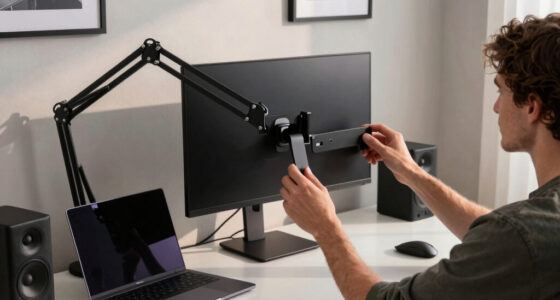
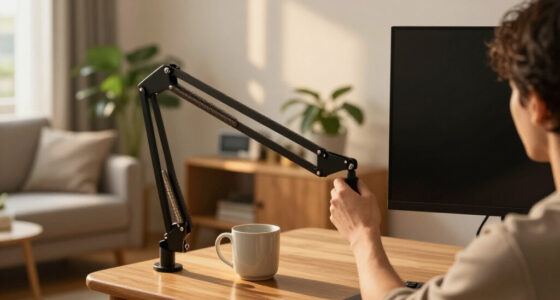
- Use adjustable stands or monitor arms to fine-tune height and distance, ensuring ergonomic comfort tailored to your posture.
- Optimize lighting—avoid glare and reflections that can cause eye fatigue and distraction, especially during long sessions.
- Keep cables tidy with cable management solutions to prevent clutter, which can distract or cause accidental disconnections.
- Set up your workspace in quiet, dim lighting to minimize auditory and visual distractions, creating a calm environment conducive to deep work.
For example, a remote worker reported that adding a monitor arm for her ultrawide reduced neck tension and improved her focus during long coding sessions. Proper ergonomic adjustments aren’t just about comfort—they directly influence your ability to sustain concentration and work efficiently.
Frequently Asked Questions
Which monitor setup is best for deep, focused work?
Ultrawide monitors often provide the most seamless workspace, reducing the need to switch windows and helping you stay immersed. However, dual monitors can also be effective if you prefer dedicated spaces for different tasks. It depends on how you work best.
Are ultrawide monitors worth the investment for productivity?
Yes, especially if your tasks involve multitasking, editing large files, or coding. Ultrawides create a continuous workspace, which reduces interruptions and can improve focus. Just ensure your hardware supports the resolution and size.
How should I set up dual monitors for ergonomic comfort?
Place both monitors at eye level, close enough to avoid excessive neck turning, and keep them aligned horizontally. Adjust height and tilt to ensure your neck stays relaxed during long sessions. Using monitor arms can help fine-tune positioning.
Can I use a single monitor for all my work needs?
Absolutely. A large, high-resolution monitor can handle most tasks, offering ample space for writing, research, and light multitasking. But if you do heavy multitasking or need separate work zones, dual or ultrawide setups might serve you better.
What hardware should I check before choosing a monitor setup?
Ensure your graphics card can support the resolution and size of your planned monitor setup. For ultrawides, check for DisplayPort or HDMI support with enough bandwidth. Compatibility prevents performance bottlenecks and ensures smooth operation.
Conclusion
Ultimately, your ideal monitor layout hinges on your work habits and space. An ultrawide can turn your entire workflow into a single, focused canvas—if your hardware supports it. Dual screens can carve out dedicated zones, keeping distraction at bay.
Remember: your workspace should serve your focus, not hinder it. Choose what aligns with your tasks, and arrange it thoughtfully. Your deep work sessions will thank you.