TL;DR

Get business pricing on your home office setup
- Business-only prices and quantity discounts
- Tax-exempt purchasing
- Multiple users, one account, clear invoices
Position your secondary monitor within a 10–20° inward angle, at eye level, and about an arm’s length away. This setup minimizes neck rotation and helps prevent strain, especially during long work sessions.
Imagine spending hours twisting your neck, glancing side to side, just to keep up with multiple screens. It’s a common scene among remote workers and students juggling dual monitors. But that repetitive turning isn’t just uncomfortable — it can cause real neck pain over time.
In this guide, you’ll learn how to position your second screen so your head stays neutral. We’ll cover angles, heights, and habits that keep your neck happy — no matter how tight your space or how many screens you use.
Position your primary monitor directly in front at eye level, with the secondary angled inward at 10–20° to minimize neck rotation.
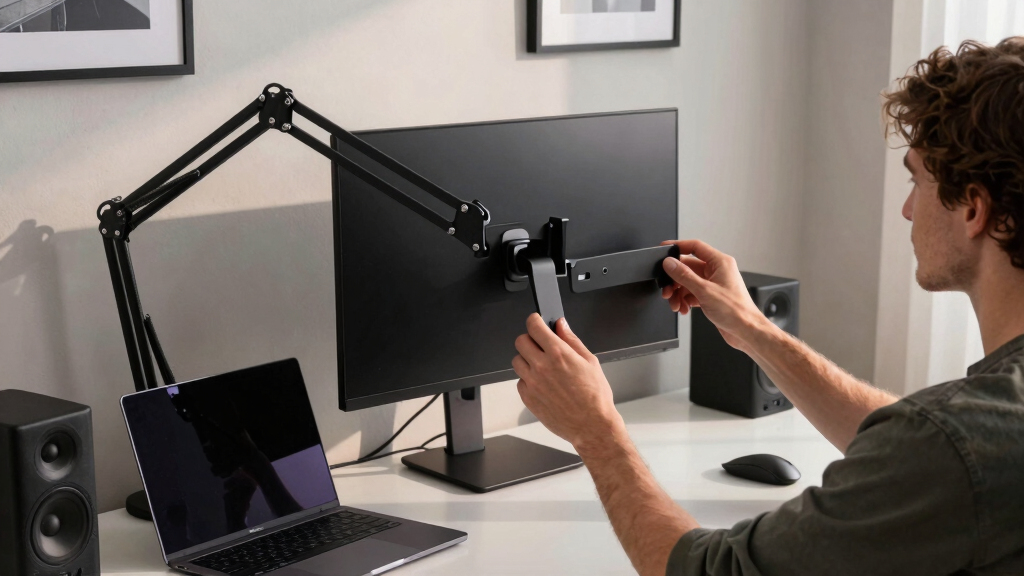
Use monitor arms to fine-tune height and angles, making adjustments quick and precise.
Switch the secondary monitor to the opposite side periodically to prevent one-sided neck strain.
Opt for curved ultrawide monitors if space allows — they naturally reduce head movement.
Combine hardware setup with behavioral habits like micro-breaks and chair swiveling for best results.
Positioning a Second Screen: Angles That Prevent Neck Twist
Keep the screen you use most directly in front. Angle the second screen inward, match its height and distance, and let your chair—not your neck—handle larger turns.
Recommended inward angle when both screens share attention.
Typical viewing distance: approximately one arm’s length.
Keep frequent viewing inside the central head-rotation arc.
Let the 80/20 rule set the geometry
Your layout should follow attention. A screen used all day belongs in front; a reference screen can sit to the side. If both are equally important, center the seam and form a shallow cockpit.
One primary, one glance screen
Center the primary at 0°. Place the secondary at roughly 15–30° for chat, dashboards, notes or reference material.
Two screens, shared attention
Center the seam on your body. Angle both displays inward by 10–20°, like an open book, so neither sits far off-axis.
The head-rotation risk zone
Preferred zone: frequent content stays within roughly 0–20° of your natural gaze.
Caution zone: sustained viewing beyond 20–30° increases cervical and shoulder muscle demand.
Angle alone is not enough
Rotation becomes more demanding when it is combined with looking up, looking down or leaning forward. Align height, depth and screen direction before fine-tuning the side angle.
Face the primary
Align its center with your nose, keyboard and chair.
Match heights
Keep both top bezels at or just below eye level.
Match distance
Place both panels about one arm’s length away.
Turn the panel in
Keep each surface close to perpendicular to your sightline.
Prevent compound tilt
A level top edge reduces repeated neck flexion and extension while switching screens.
Reduce refocusing
Equal viewing distance limits eye adjustment and the tendency to lean toward one display.
Make precision practical
Gas-spring arms make height, depth and inward-angle corrections fast and repeatable.
Side-by-side, stacked or curved?
A well-angled side-by-side layout is usually the most balanced. Narrow desks may favor stacking or portrait orientation, while curved ultrawides reduce the total distance your gaze travels.
| Setup type | Best for | Neck advantage | Watch for | Verdict |
|---|---|---|---|---|
| Angled side-by-side | Balanced dual-screen work | Natural horizontal scanning with matched height | Excess desk width can push the outer screen past 30° | Best all-round choice |
| Vertical stack | Narrow desks and reference screens | Reduces horizontal head rotation | Top screen may cause neck extension if mounted too high | Keep the upper panel low |
| Curved ultrawide | Continuous multi-window workflows | Reduces edge distance and removes the bezel seam | Large 32:9 panels still require thoughtful window placement | Strong low-rotation option |
| Portrait secondary | Documents, code and messaging | Reduces the total horizontal span | Vertical scanning may increase if content fills the screen | Excellent for tight spaces |
Narrow desk
Use a portrait secondary or low vertical stack. Keep the most-used region near eye level.
Portable monitor
Raise the panel on a stand. A low laptop-style screen creates neck flexion even when its angle is correct.
Curved alternative
A 34–49 inch, 1500R–1800R display can consolidate two work zones while limiting head travel.
Hardware sets the stage. Movement protects the neck.
Even a precise setup cannot make prolonged static posture harmless. Change position, move your eyes and rotate from the chair or torso when a task pulls you away from center.
Face active work
Turn the chair toward a screen used for more than a quick glance.
Move key windows
Bring long-form reading and focused tasks onto the central display.
Swap sides
Periodically relocate the secondary screen to balance one-sided loading.
Take micro-breaks
Stand, roll the shoulders and return the head above the spine.
Adjust the arm
Change height and angle when your task or seated position changes.
A simple visual and postural reset
Every 20 minutes, look at something about 20 feet away for 20 seconds. Use the pause to relax your jaw, lower your shoulders and return your head to neutral.
Fine-tune the setup
Ergonomic guidance defines a useful starting point, but your screen size, prescription, desk depth and task pattern still matter. Adjust within the safe zone until movement feels easy.
Left or right?
Choose the side that fits your workflow and avoids glare. The important part is keeping frequently viewed content near center and avoiding a sustained twist.
What is the ideal angle?
Use 10–20° inward for two equally used screens. A secondary glance screen can sit around 15–30° off-center.
Is stacked better?
It can help on a narrow desk, but only when the upper monitor is low enough to avoid repeated upward neck extension.
The neutral-neck formula
Center the primary + angle inward 10–20° + match height and distance + swivel for sustained side work. If your head repeatedly turns beyond roughly 20–30°, move the screen, the chair or the window—not just your neck.
Why Your Second Screen Should Sit at a 10–20° Angle
The best way to prevent neck twists? Angle your secondary monitor inward, about 10–20°. Think of it like opening a book naturally — your eyes move smoothly from one page to the next. When the monitor is too far off-angle, your head has to turn more than 30°, which significantly increases muscular strain in your neck and shoulders. This extra effort can lead to fatigue and discomfort over time, especially during long work periods.
By angling the monitor properly, you’re reducing the need for excessive head movement, which minimizes muscle engagement and fatigue. This small adjustment can help maintain a balanced posture, preventing the repetitive strain that causes chronic pain. The tradeoff, however, is that if the angle is too narrow, you might have to turn your head slightly more than necessary when shifting focus, so find a comfortable middle ground that feels natural for your workflow.
In essence, inward angling promotes a more ergonomic workflow by aligning your line of sight more directly with the monitor, reducing strain and supporting better long-term neck health.
Products Worth Considering

EGO POWER+ Cordless Electric Leaf Blower 530 CFM with Battery (LB5302)

DEWALT 20V MAX Brushless Drill/Driver and Circular Saw Combo Kit (DCK252D2)

Makita SP6000J1 6-1/2-Inch Plunge Circular Saw Kit with 55-Inch Guide Rail
As an affiliate, we earn on qualifying purchases.
How to Set Your Monitors for Minimal Neck Rotation
- Place the primary monitor directly in front at eye level, about an arm’s length away. This positioning ensures that your gaze naturally falls onto the screen without tilting your head up or down, which can cause neck strain over time. Proper height also prevents you from craning your neck forward or looking down, both of which increase muscular load.
- Position the secondary monitor at a 10–20° inward angle, aligned with your line of sight. This angle is critical because it allows your eyes to shift smoothly between screens without requiring your neck to turn excessively. The goal is to keep your head in a neutral position, avoiding sustained rotation that can cause discomfort and muscle fatigue.
- Adjust height so the top bezel is at or just below your eye level. Proper height maintains a straight neck posture, reducing the tendency to tilt your head up or down, which can cause neck extension or flexion. Both extremes place unnecessary stress on cervical muscles and joints, especially during prolonged use.
- Keep both screens the same distance from your eyes to prevent refocusing effort and tilt strain. When screens are at different distances, your eyes must constantly adjust, which can lead to eye fatigue and neck tension. Consistency in distance helps your eye muscles relax and reduces overall strain.
- Use monitor arms to fine-tune angles and height easily. Adjustable arms allow quick modifications as your tasks change, ensuring your setup remains ergonomic throughout the day. They also help in maintaining symmetry, which is beneficial for spinal alignment.
For example, a remote worker might set their primary monitor centered at eye level directly in front, with the secondary on an adjustable arm angled inward at 15°, ensuring minimal head rotation. This setup keeps the neck in a neutral position, reducing fatigue and discomfort during long work sessions.
Comparison: Side-by-Side vs. Stacked Monitors — Which Protects Your Neck Better?
| Setup Type | Advantages | Drawbacks |
|---|---|---|
| Side-by-Side | Natural eye movement, easier to glance quickly, familiar layout | Requires wide desk space, can cause neck turning beyond 30° if not angled properly |
| Stacked (Vertical) | Reduces horizontal head turn, better for narrow desks | Top monitor often causes neck extension, eye movement is vertical and can be tiring |
Choosing between these layouts involves understanding how your neck moves and what your workspace can accommodate. Side-by-side setups mimic natural viewing patterns but may force significant head turning if the monitors aren’t angled correctly, leading to discomfort over time. Stacked monitors minimize side-to-side rotation but can cause neck extension when looking up at the top screen, especially if it’s positioned too high.
Ergonomic research suggests that stacking screens can be beneficial if the top monitor is positioned low enough to prevent neck extension. Conversely, a well-angled side-by-side setup often provides the most balanced posture, reducing both horizontal and vertical neck movements. The key is to balance monitor placement with your desk space and personal comfort, considering the tradeoffs of each arrangement.
Tips for Maintaining Good Neck Posture When Using Dual Screens
- Swivel your chair to face the active screen instead of turning your head, which keeps your neck aligned and reduces muscular strain. This habit ensures your entire torso is engaged in the task, preventing one-sided muscle fatigue.
- Periodically switch the secondary monitor to the opposite side to balance load. This prevents overuse of muscles on one side and encourages symmetrical posture, reducing long-term discomfort.
- Take micro-breaks — look away or stand every 20 minutes to reset your posture. These small pauses help relax tense muscles and prevent stiffness that develops from static positions.
- Use a monitor arm to easily adjust angles and height as your tasks change, maintaining ergonomic alignment throughout the day. Flexibility in positioning allows you to adapt to different work activities without sacrificing comfort.
- Keep your head aligned with your spine; avoid looking up or down excessively. Consistently maintaining a neutral head position reduces cervical strain and prevents long-term neck issues.
For example, during a long video call, rotate your chair to face the main monitor, keeping your neck straight and muscles relaxed. When referencing a side document, pivot your entire torso instead of just turning your neck, which distributes strain more evenly and prevents localized fatigue.
Frequently Asked Questions
Should my secondary monitor go on the left or the right?
Mostly, it’s personal preference and what feels most natural. Some suggest placing it on your dominant side or opposite a window to reduce glare. The key is consistency — whatever side you choose, stick with it to build a habit that minimizes neck twisting.
What’s the ideal angle for dual monitors?
Generally, 10–20° inward each is best if used equally. If one is more of a glance screen, place it at about 15–30° off-center. The goal is to keep your head within a 30° arc to avoid sustained rotation that could cause discomfort.
Is a stacked setup better than side-by-side for my neck?
Stacked monitors can reduce horizontal neck rotation, especially on narrow desks. However, be sure the top monitor is positioned low enough to prevent neck extension. It’s a good option if you prefer vertical scrolling and less side-to-side movement.
Can I replace dual screens with an ultrawide?
Yes, ultrawide curved monitors often provide a seamless viewing experience, reducing head movement and strain. They work especially well for tasks requiring a broad view, like video editing or design, but require some adjustment in window management habits.
How high and close should my screens be?
The top of your monitor should be at or just below eye level, about an arm’s length away. Both screens should be at the same height and distance to keep your neck in a neutral position, reducing strain during long hours.
Conclusion
Keeping your monitors within a comfortable angle isn’t just about good posture — it’s about protecting your neck over the long haul. A simple tweak in how you angle your screens can make hours of work feel less like a strain.
Remember, your neck is your workhorse — treat it kindly. Set your monitors right, move often, and your future self will thank you with less pain and more focus.